USB LED DONGLE
For this guide we're going to make a USB LED Dongle: when plugged into a device, it will light up in different patterns!
Some ideas:
- Make the LEDs keyboard controlled
- Show animations on an LED matrix
- Add physical buttons
- Arrange the LEDs in a fun shape!
Here is mine, yours will look different!
The Final PCB:
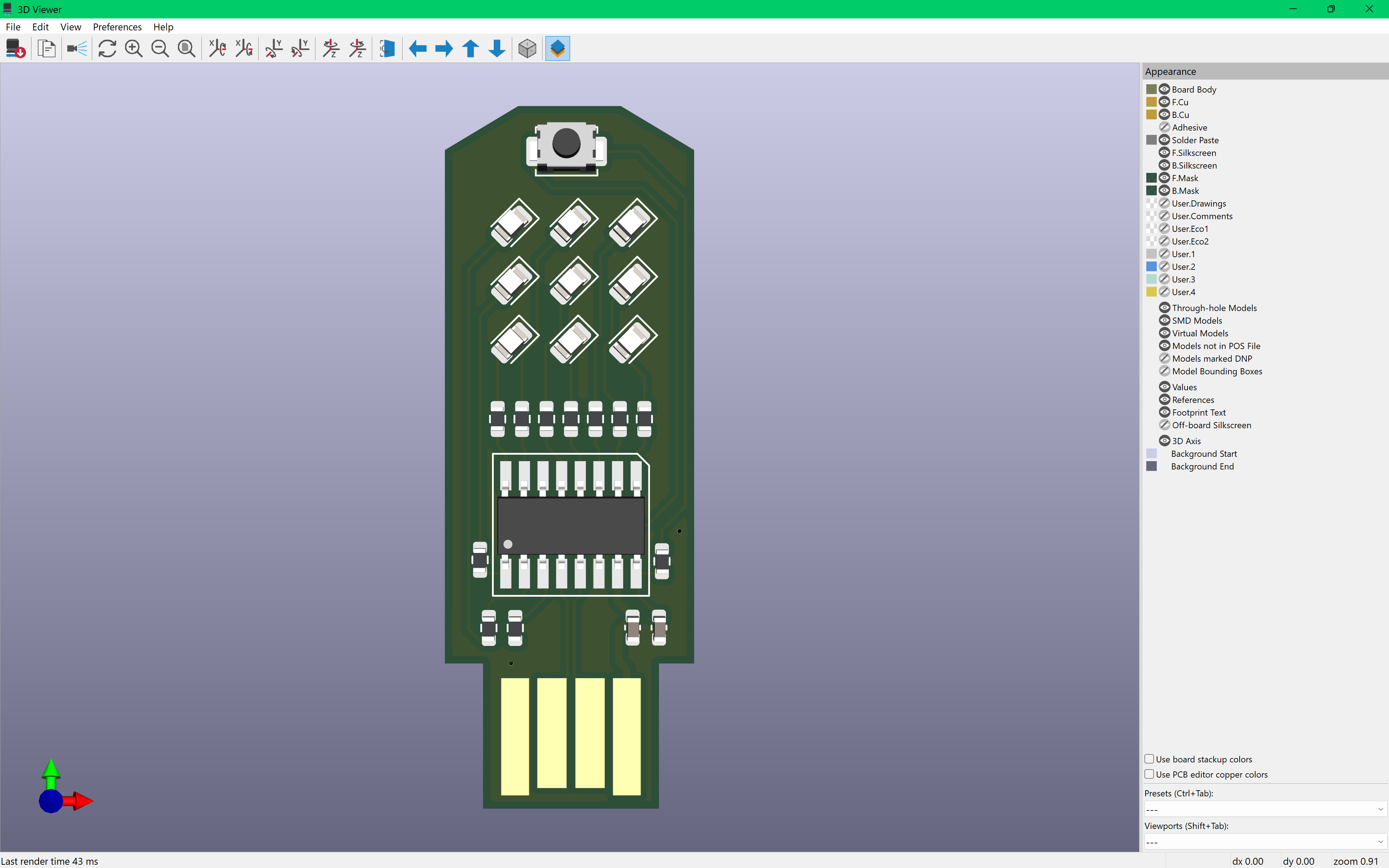
The Final Product!
We'll be using KiCAD, to create a new project click:
File -> New Project -> [Name your project] & save it
Then, open your schematic ([Project Name].kicad_sch) by double clicking it.
A schematic describes which components are to be connected (like a wiring diagram); however, it doesn't describe where they will be placed, nor does it physically connect them. The physical connections will be drawn in the PCB Editor.
Making the Schematic
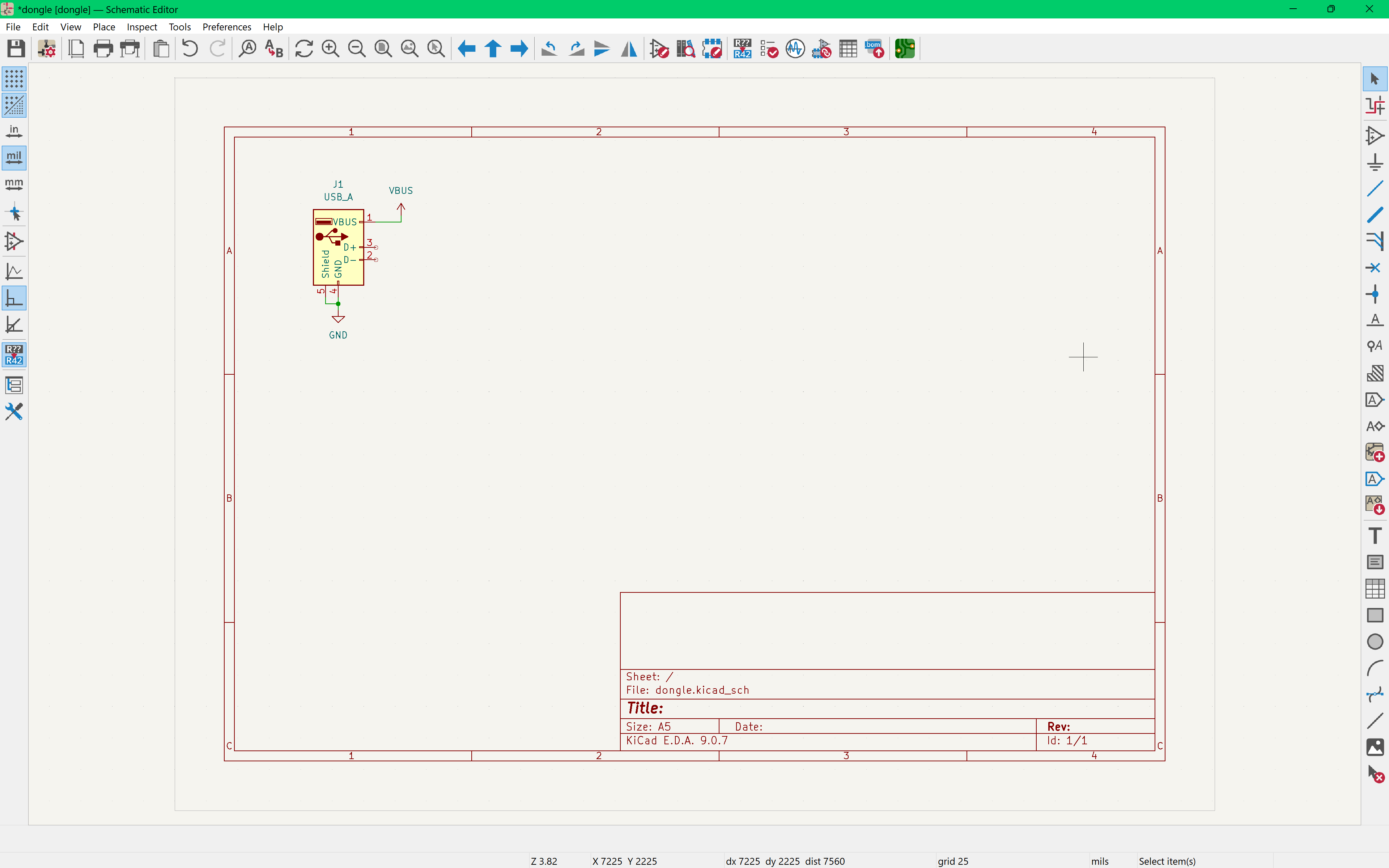
Press "a" to open your symbol library, which contains the icons that represent electronic components to be used in the schematic.
In the search bar, type "USB_A" and select the first option. This is the symbol for a USB Type-A trace plug. We'll be using USB Type-A for this guide, as it is the simplest to work with, but Micro USB is also a good option!
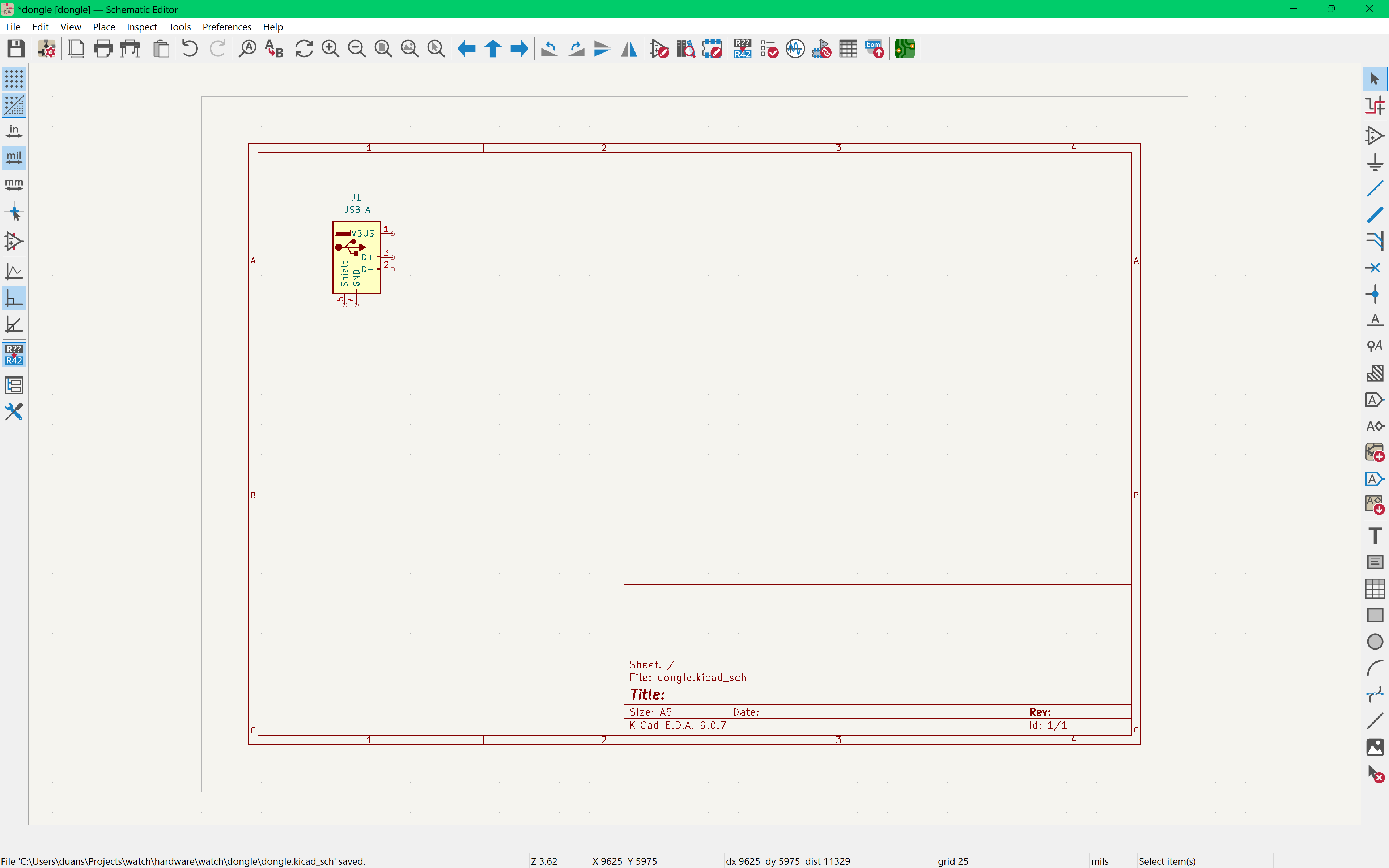
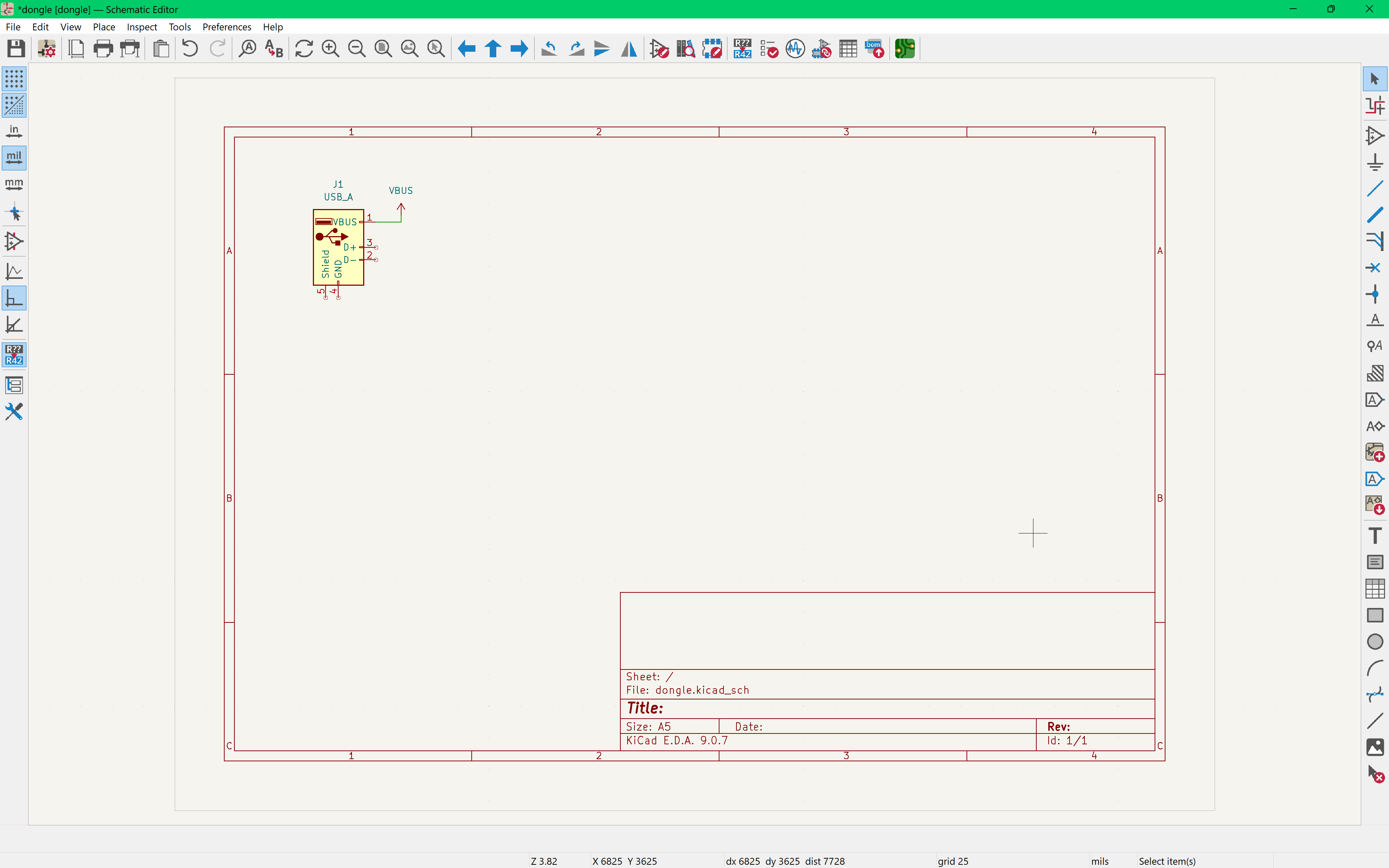
Press "p" to open the Power Symbol Library (pressing "a" opens the entire symbol library, which includes power symbols, but is slower). Search for VBUS.
Press "w" or click on the node to start drawing wires connecting the VBUS pin on our USB Type-A symbol.
Here we are defining that the VBUS pin is connected to the VBUS net. This net will power the rest of the board!
Next we are going to connect Pins 4&5 on the USB_A symbol (Shield & GND), to a ground symbol. Press "p" and type "GND".
What is Ground?
Ground is the **common** reference point of a circuit. We call it 0 V, and the voltage of other circuit nodes is normally described relative to it. Ground is one large net, connected to any component that requires a return path (i.e. electrical)GND is a net name, meaning anything connected to the GND symbol will be connected to the ground net.
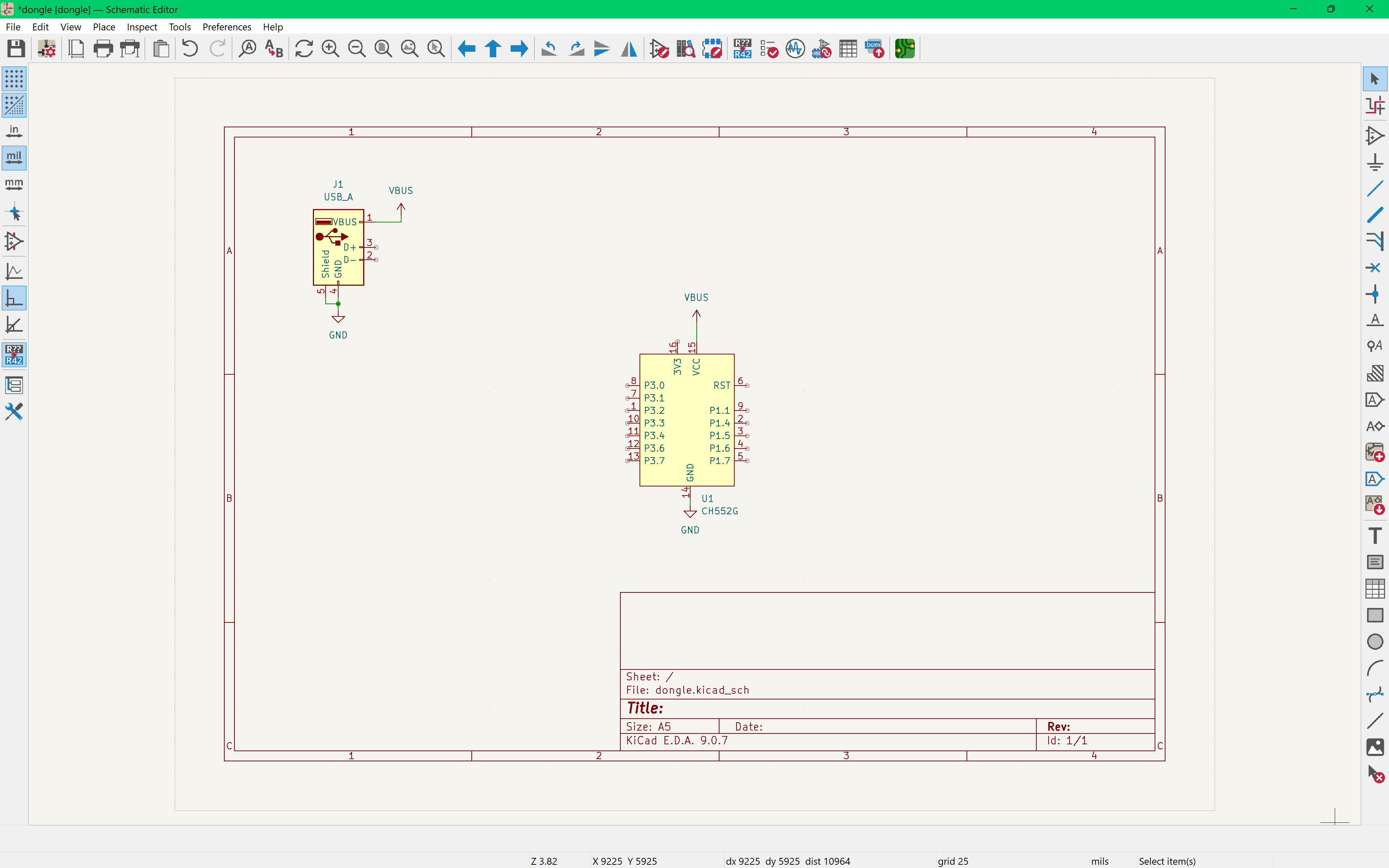
Next, it's time to add our microcontroller (a.k.a. MCU)! We'll be using the CH552G as it can communicate directly with a computer's USB port (no converter needed!), masquerade as a USB device (keyboard/mouse/etc), all while being easy-to-use and cost efficient!
You can read its datasheet for more info, but everything you need for this project will be covered here.
This MCU isn't native to KiCAD's libraries, so we'll be importing the symbol and footprint (we'll revisit the 3D model soon) ourselves.
- Symbol - CH552G.kicad_sym
- Preferences -> Manage Symbol Libraries -> Global Libraries -> Click the +
- Enter
CH552Gas the Nickname - Click the empty Library Path section then press the folder icon that just appeared, and find the downloaded symbol path
- To access it press "a", and search it up as usual! It is now part of your KiCAD symbol library.
Place the CH552G MCU, and wire GND to our GND net. Based on the datasheet, we know VCC expects a 5V input, so we'll be connecting it to VBUS.
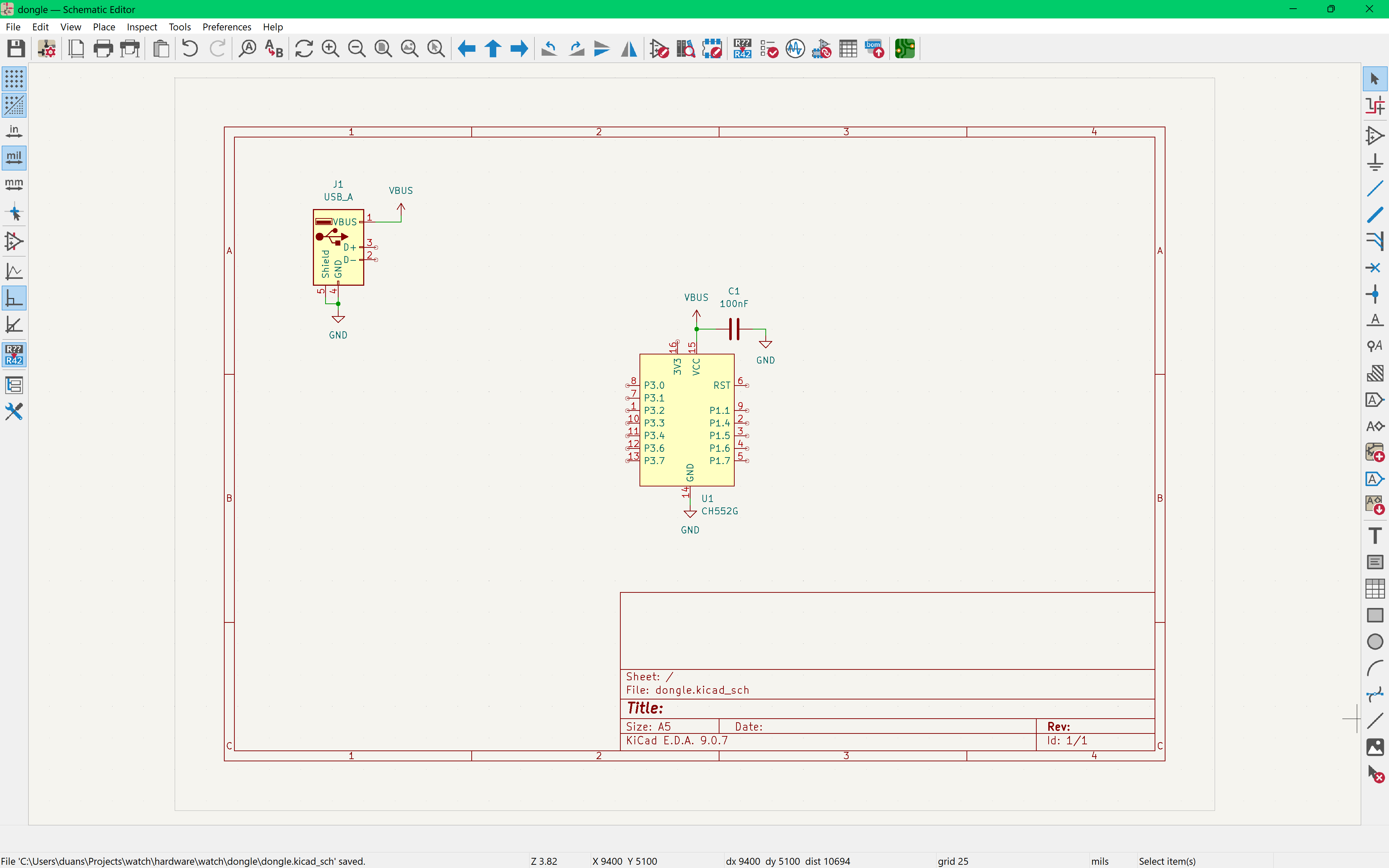
I've added a decoupling capacitor, connecting one end to the VBUS rail, and the other to GND. Within the symbol library, type "C" and choose Unpolarized capacitor. To edit the value, click on the capacitor then press "e", then edit the value field.
Decoupling caps filter out high frequency noise and can supply stored power suddenly, preventing voltage drops. We are using a 100nF capacitor because small-value ceramic capacitors respond almost immediately to fast voltage spikes and filter out high-frequency noise. (Larger capacitors are better at handling slower, larger power draws, but react too slowly for this use case)
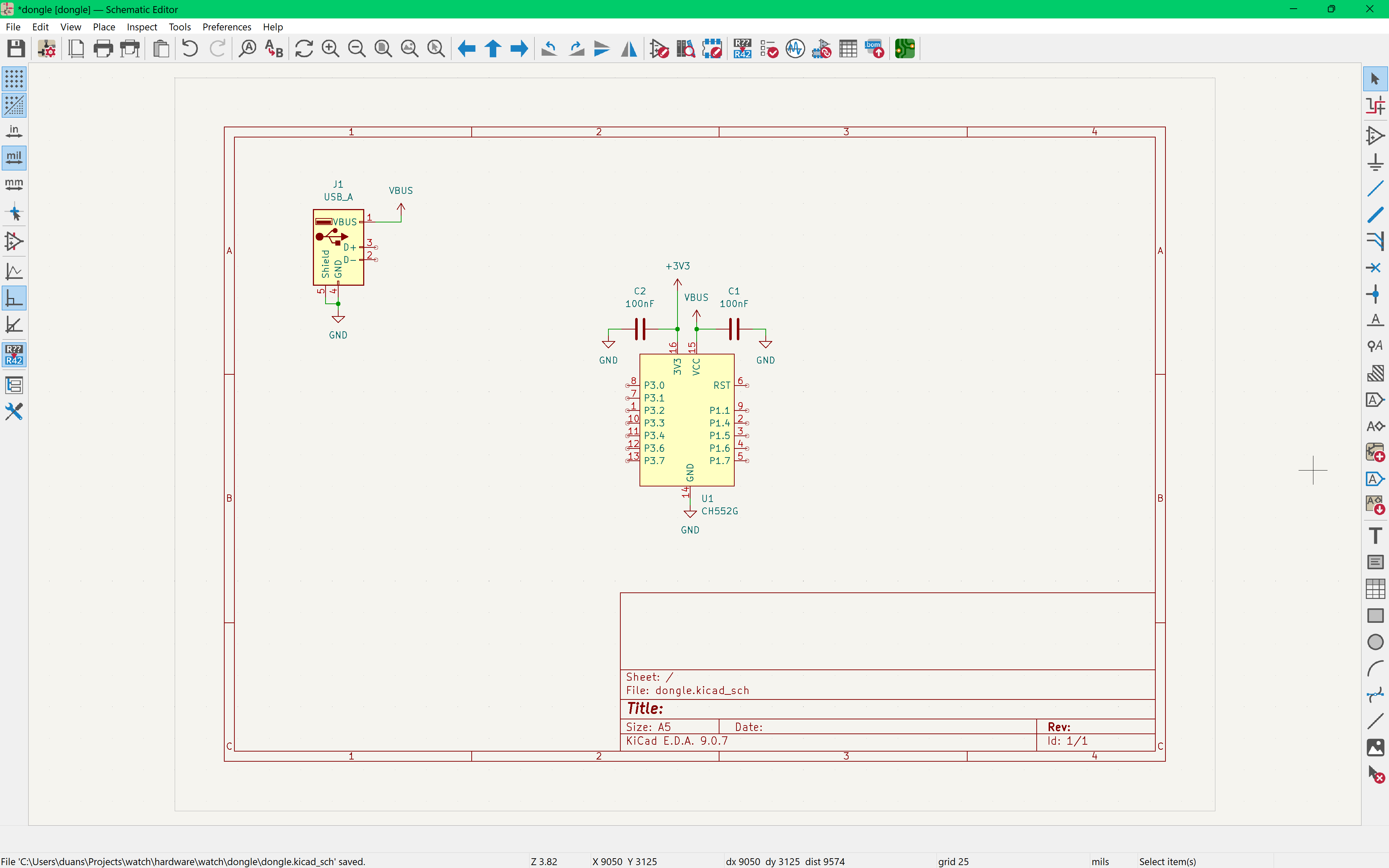
Let's do the same for +3v3! The +3v3 pin outputs 3.3V from the microcontroller, we won't be using it here, but it still needs a decoupling capacitor to stay stable.
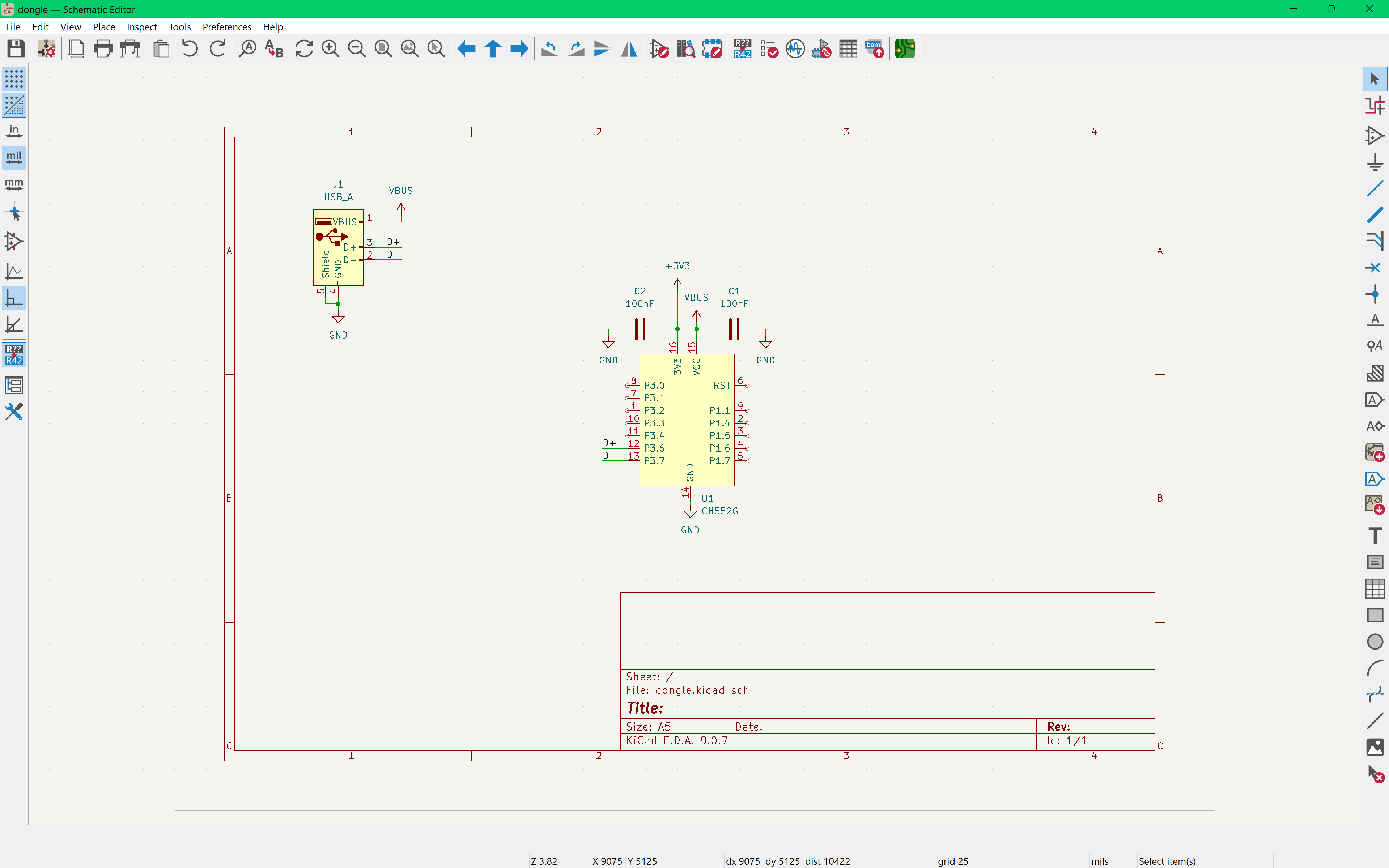
Next we are going to connect our USB data lines to our MCU, this will be how our computer communicates with our microcontroller. Instead of using a wire to connect them, this time I'll use a Net Label, it connects items to a net (same as VBUS or GND, but for a custom net).
Press "L" to create a net label, and create one each for D+ and D-. (electrically, using wires is no different, I'm just using net labels to keep organized)
It's crucial that D+ and D- are connected to P3.6 and P3.7 respectively, as those are the pins on our microcontroller that interact with USB data.
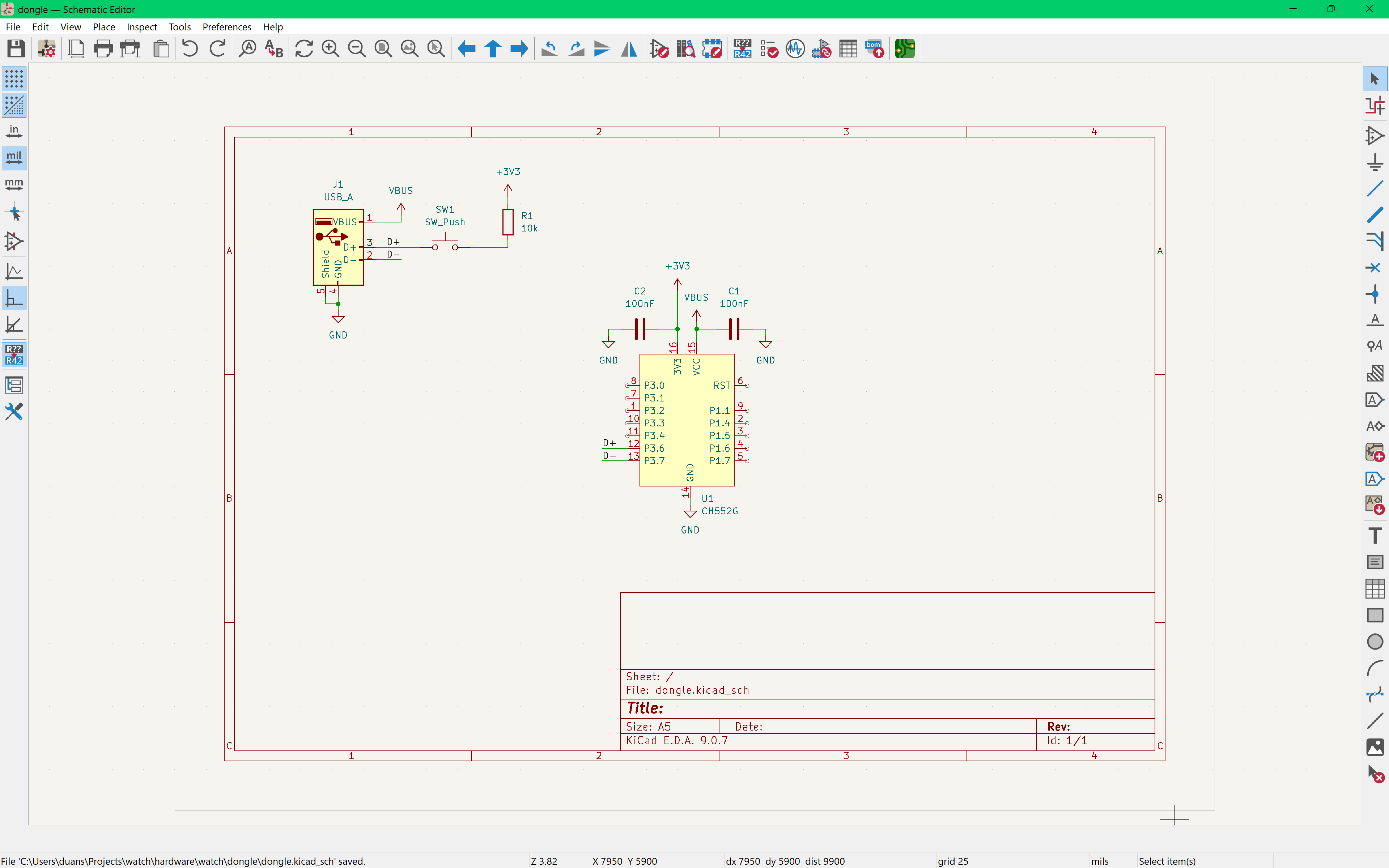
Next we are adding a button to the D+ to enter the bootloader (i.e programming mode). Otherwise, our board doesn't know whether to communicate with the laptop for flashing new code versus running code.
When the button is pushed down, D+ is pulled up through a 10k resistor to enter the bootloader (as specified in the datasheet).
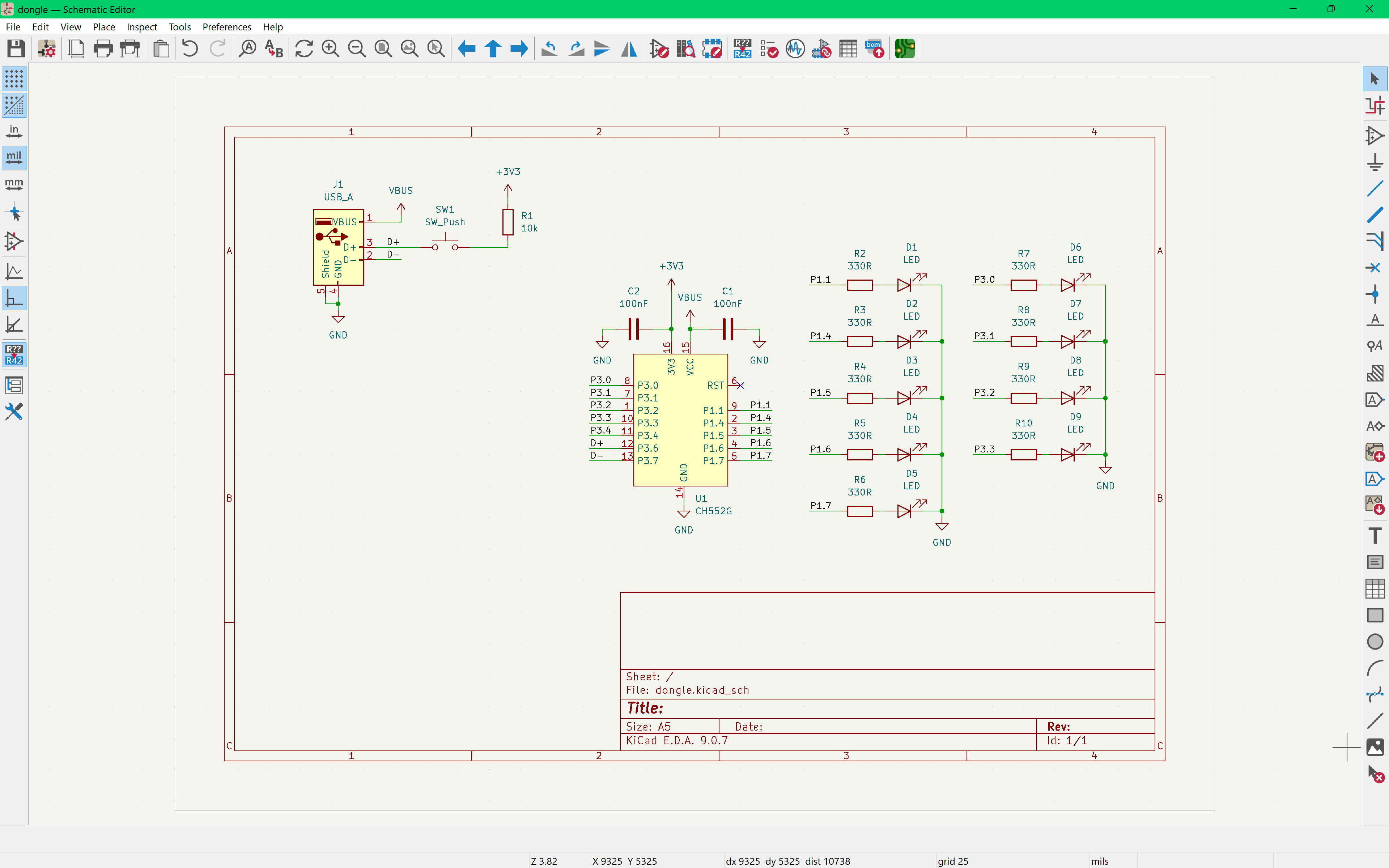
Now it's time to add the LEDs!
I've used net labels again, and used each of my extra pins to drive an LED.
For each LED I've placed a 330Ω resistor in series to limit the current going into the LED (to protect it!). This will be fairly bright and is approaching the MCU's pins limits.
Here's where you could get especially creative, you can use these pins for so much more than just LEDs! I'm sticking with LEDs for simplicity and fun :)
Assigning Footprints
Footprints define the "land pattern" of an electronic component, meaning all its markings, copper pads, holes needed to mount the component to the PCB.
Click on the Assign Footprints button on the top bar, and a window will pop up.
For each item, search then select the correct footprint.
| Part | Footprint |
|---|---|
| CH552G | SOIC-16_3.9x9.9mm_P1.27mm |
| C1, C2 | Capacitor_SMD:C_0603_1608Metric |
| Resistor | Resistor_SMD:R_0603_1608Metric |
| LED | LED_SMD:LED_0805_2012Metric |
| Button | SW_SPST_TS-1088-xR020 |
| USB Type-A Trace | USB Type-A Trace - Unzip the folder - Preferences -> Manage Footprint Libraries -> Global Libraries -> Click the + - Enter CH552G as the Nickname- Click the empty Library Path section then press the folder icon that just appeared, and find the downloaded CH552G.pretty- CH552G:CH552G is your footprint! |
| These packages (sizes) are specific to my project, feel free to adapt them to yours! Though, since our capacitors are for decoupling, I would not make them any larger. |
Laying out the PCB
Hop into the PCB editor by pressing:
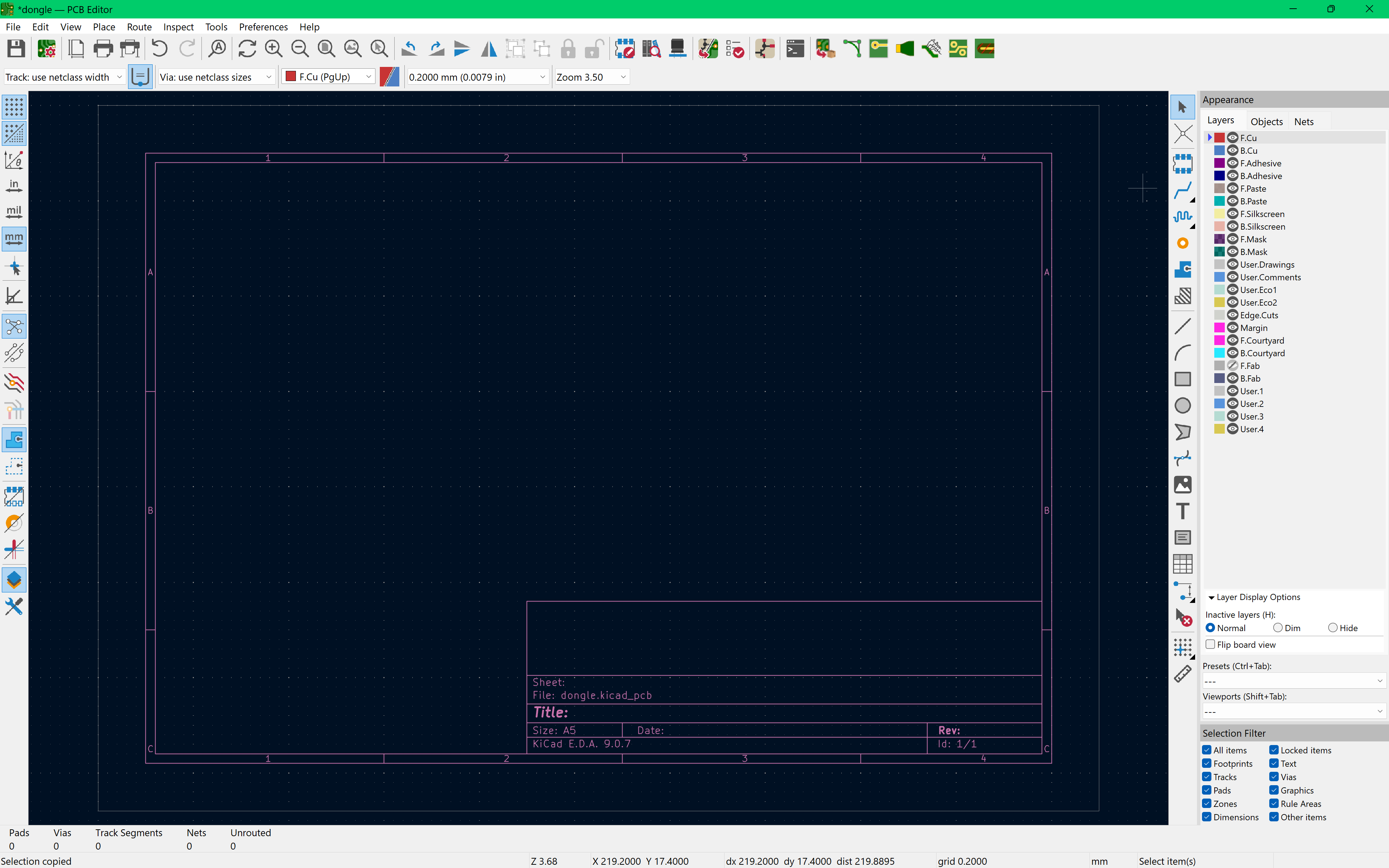
Here is where we turn the circuit we've defined in our schematic into a physical board by laying out our footprints!
Increasing the board thickness
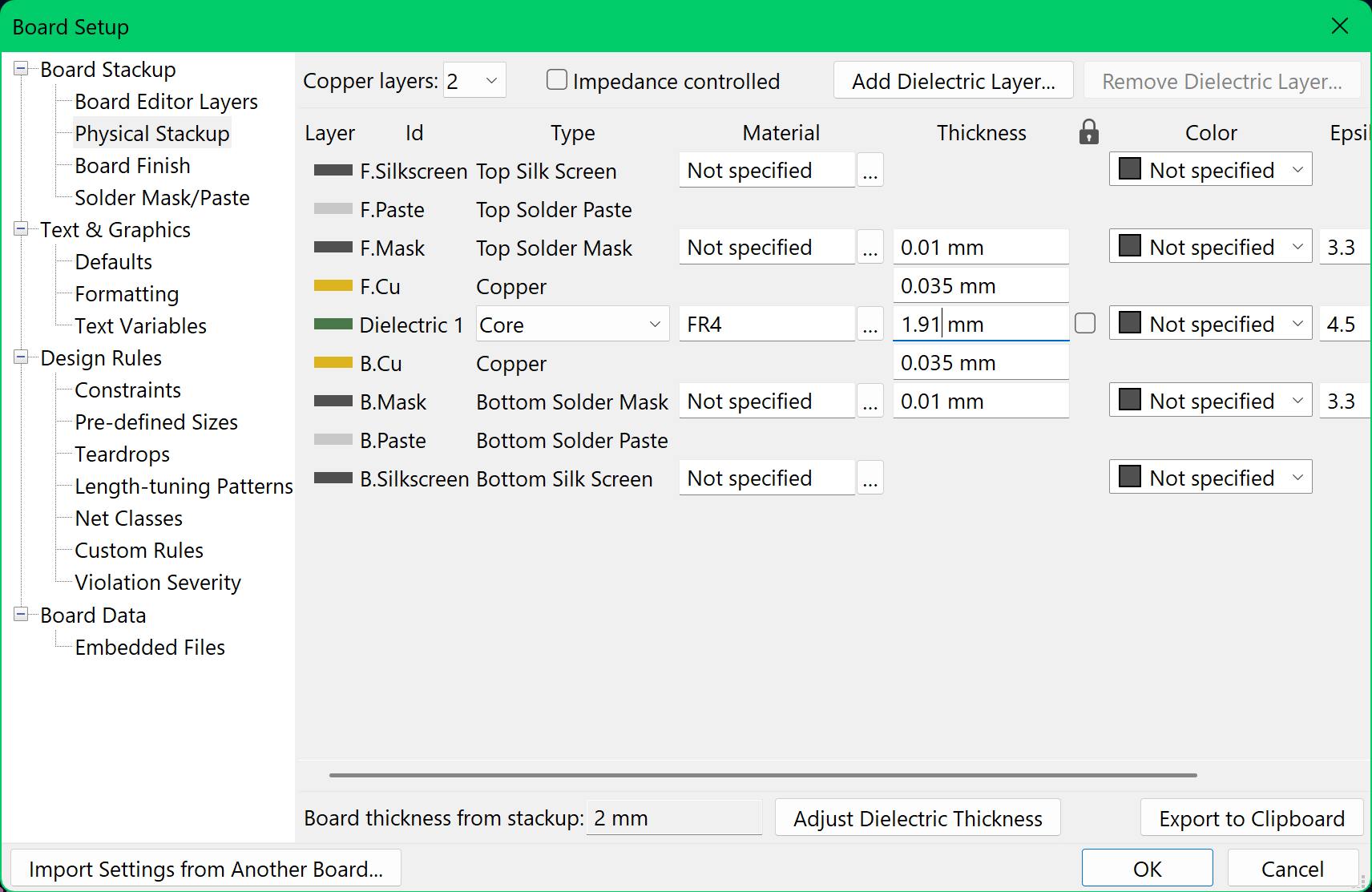
The default board thickness is 1.6mm, at this height, it will be too loose when plugged in! We need to increase the overall board thickness to fix this --in total your board needs to be 2.0mm thick.
There are two ways to go about this:
- Model a case --> 3D print it
- Increase the PCB's thickness
The latter greatly increases production costs and I would strongly advise against it unless your project complexity and polish and justify it. (unsure? message in #dongle)
Option 1: Model a case --> 3D print it
In total your board thickness must add up to 2.0mm. Here are two ways I recommend:
- Total PCB thickness of 1.0mm + 3D print a 1.0mm board
- Learn to change the thickness here, just replace the Dielectric 1 value with 0.91mm
- Total PCB thickness of 1.6mm + 3D print a 0.4mm board
Learn how to do this in Adding a Case (scroll down!)
Option 2: Increase the PCB thickness
(I don't recommend this option)
We are going to update our board thickness to 2.0mm, this ensures that the board will fit snugly in the USB-A port.
File -> Board Stackup -> Physical Stack up -> Update Dielectric1 to 1.91mm
This will make the overall board thickness add up to 2.0mm
Now, back to our layout! It's currently looking empty so let's click "F8" to bring the footprints into the editor.
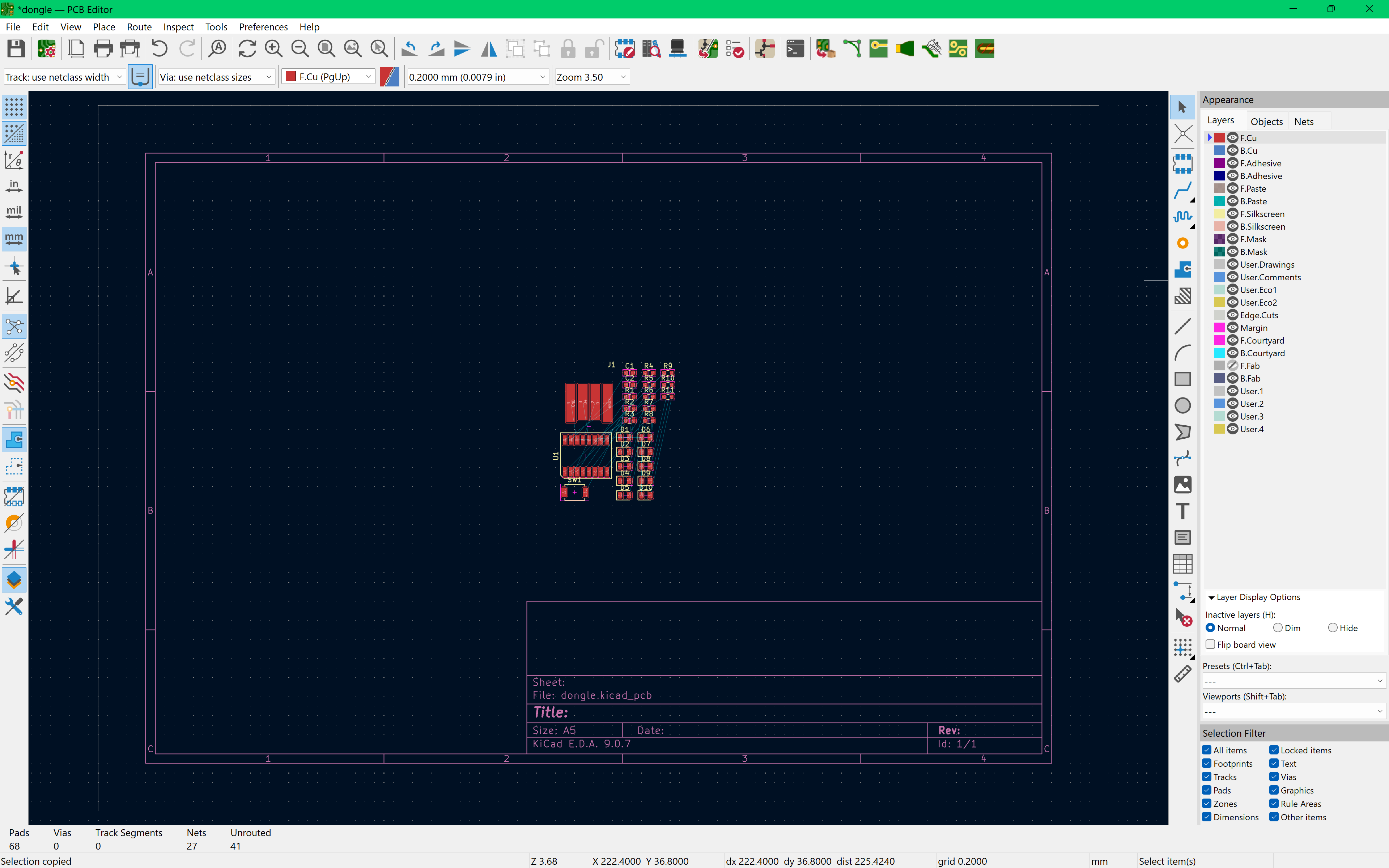
Here is where you can go wild with your layout! I've seen everything from banana-shaped boards to multiple boards stacked atop one another.
But before you get started, here are some rules of thumb:
- Place your USB-A connector at the edge of your board with nothing on its left/right/front, so nothing blocks it from plugging into a port
- Place your decoupling capacitors as close to its subsequent pin on the MCU as possible
- A larger distance adds additional resistance and inductance, meaning the capacitor cannot respond as quickly
While you layout components, it's useful to see what they would look like in real life. To do so, press Alt+3 to open the 3D viewer!
Here's my final layout: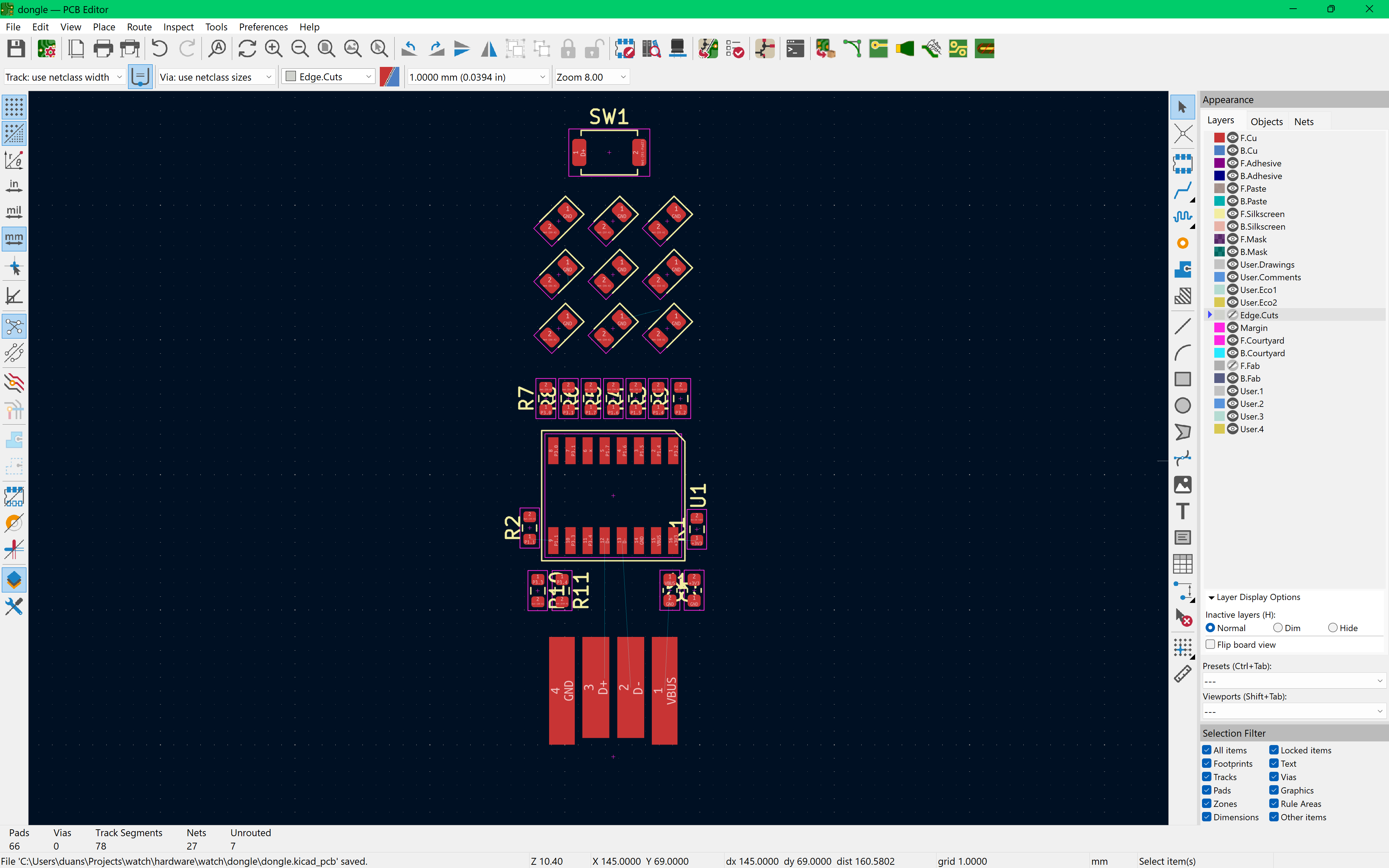
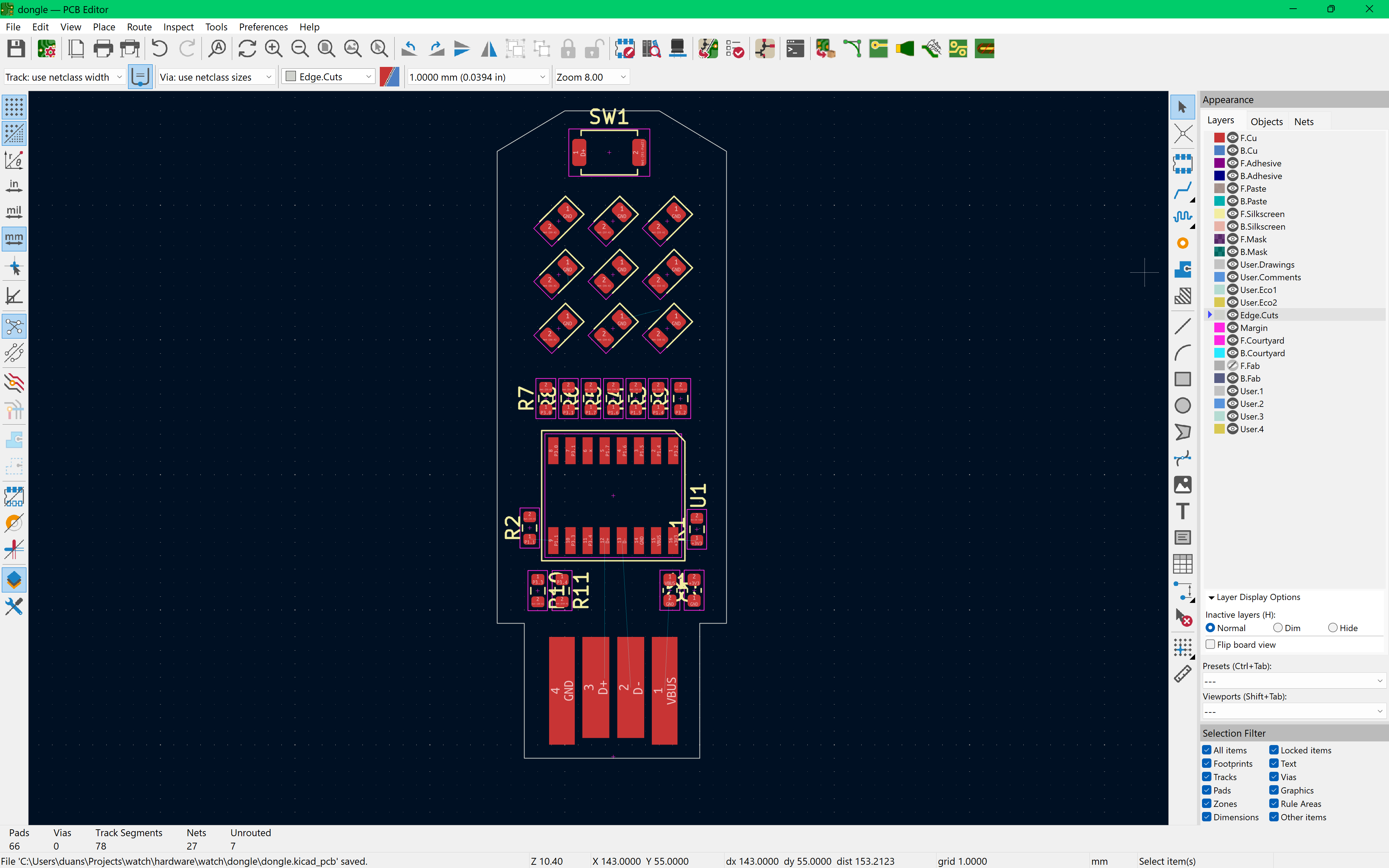
The Edge.Cuts layer is where the board outline is defined!
There are some minimal drawing tools on the right, but for more complex outlines it is much easier to create it in an alternative software (e.g. Figma) and upload it as DXF or SVG file.
Follow the outline for the USB-A footprint on the F.Fab layer this is crucial to ensure your board fits within the port!
Routing
You may have noticed the thin blue lines linking items together, those are the ratsnest; Each line is a connection that needs to be made —these are what you designated in your schematic!
Make sure by the end of this project you have no ratsnests left!
Press "X" to begin routing (drawing connections). Click on a pad to start and draw a trace based on your ratsnest.
Power
For the VBUS net we need to increase the trace width to accommodate the higher current it carries compared to our signal traces (like D+/D- or the LED pins). You can edit the trace width by pressing "e" while drawing a trace. Change the trace width from the default (0.2mm) to 0.5mm.
This isn't critical for such a short connection, but it is a good habit!
Rather than routing GND as a bunch of individual traces, you draw a zone using the zone tool on the right bar. Select the layers you want the pour to fill: F.Cu (top) and/or B.Cu (bottom).
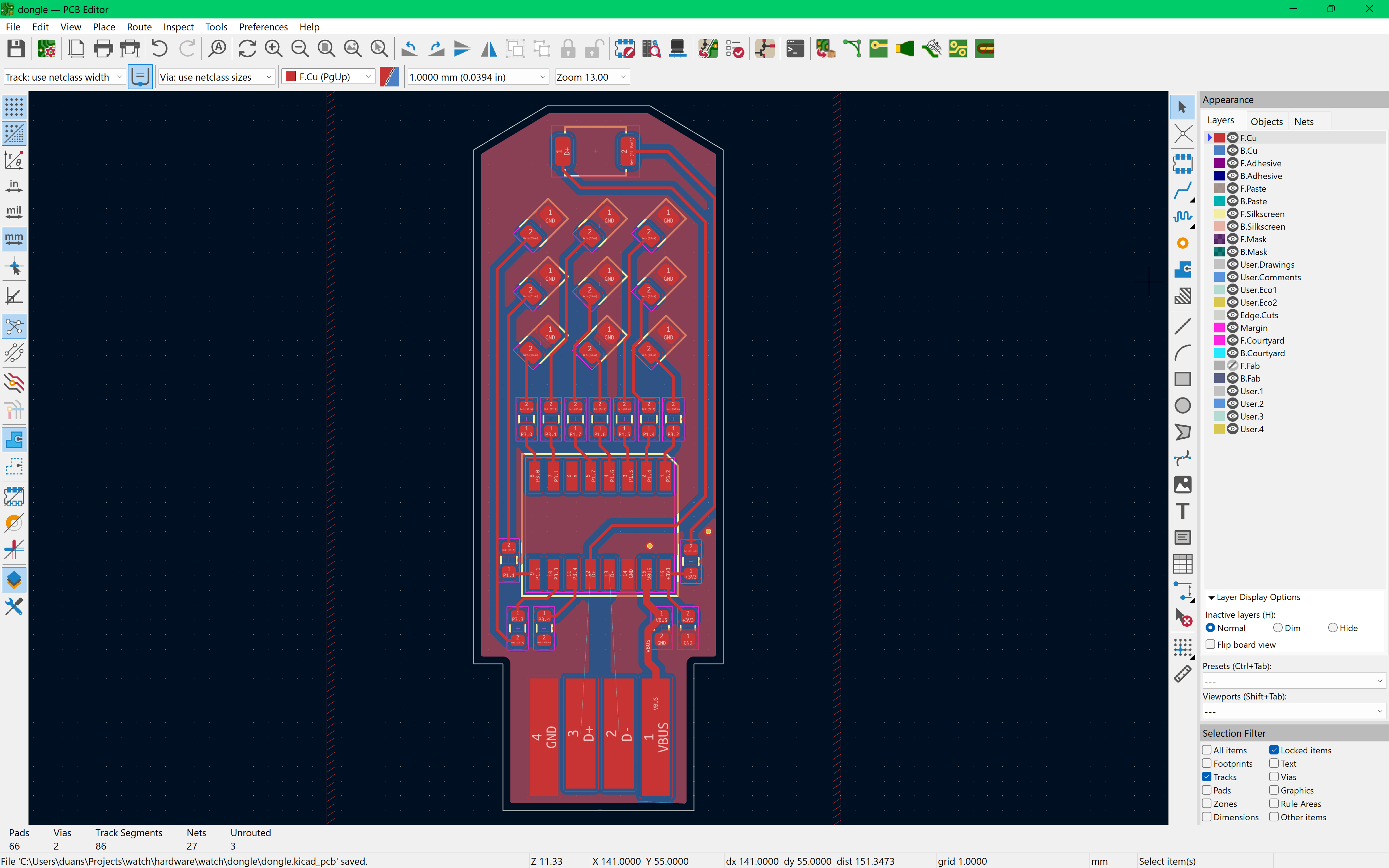
Differential Pair
You may have noticed that I have two ratsnests left! Those are special, as they carry data to and from the device (often a laptop) it's connected to. Data is sent on both traces, and must arrive at the receiving end at the same time to avoid a mismatch; therefore, the length of the traces must be the same.
Select a D+/D- pad, and then press "6", this will force traces to be the same length, and it'll route both traces at once.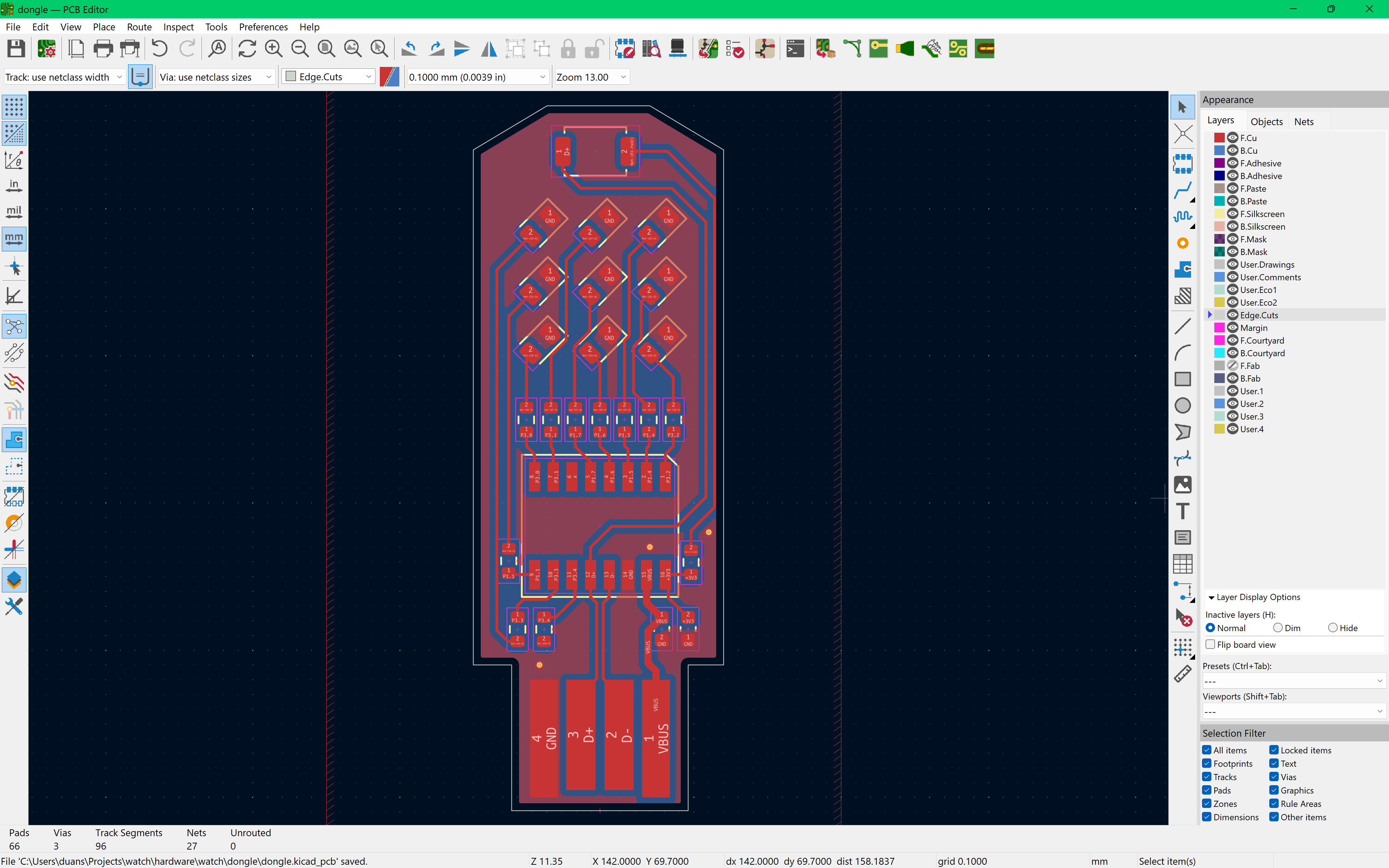
Final Checks!
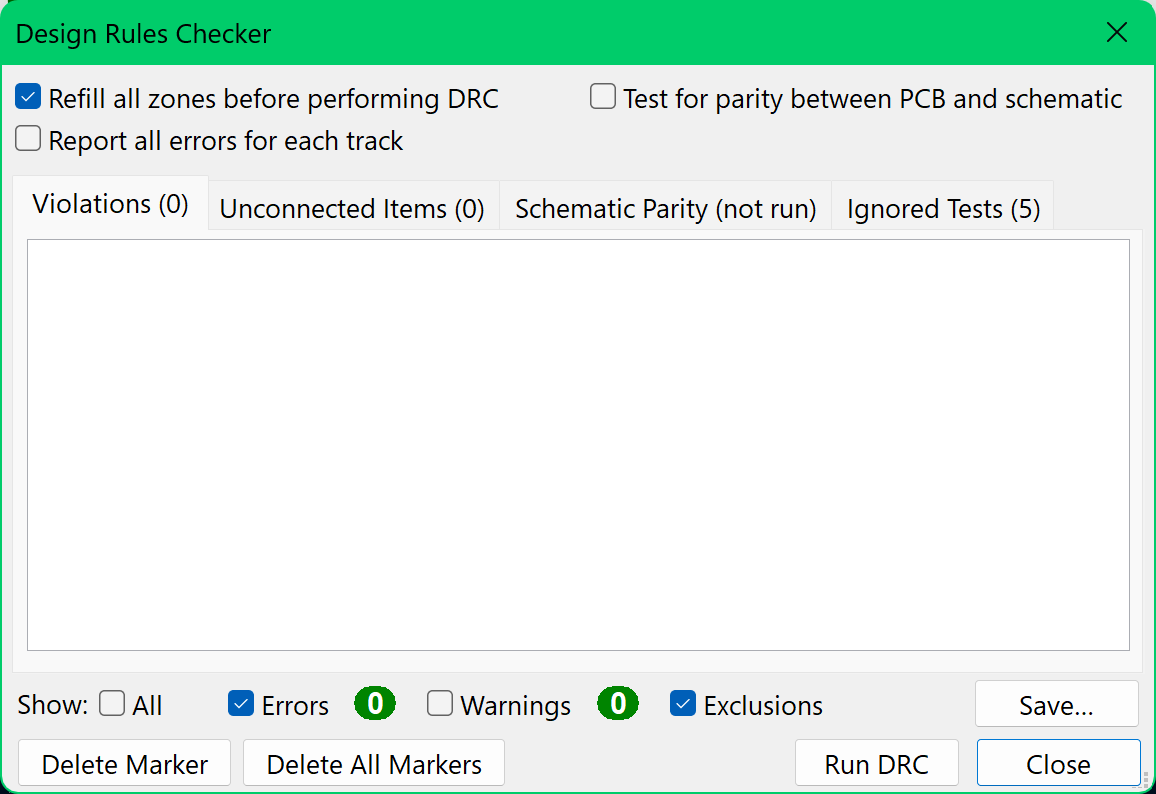
Run Design Rules Checker to check for errors, it'll flag things like unrouted connections, components that are too close together, and much more.
Make sure you address them all!
The Finished PCB!
You made it to the end of the PCB portion of this guide! If you have finished your board, or are stuck somewhere send a message in #dongle!
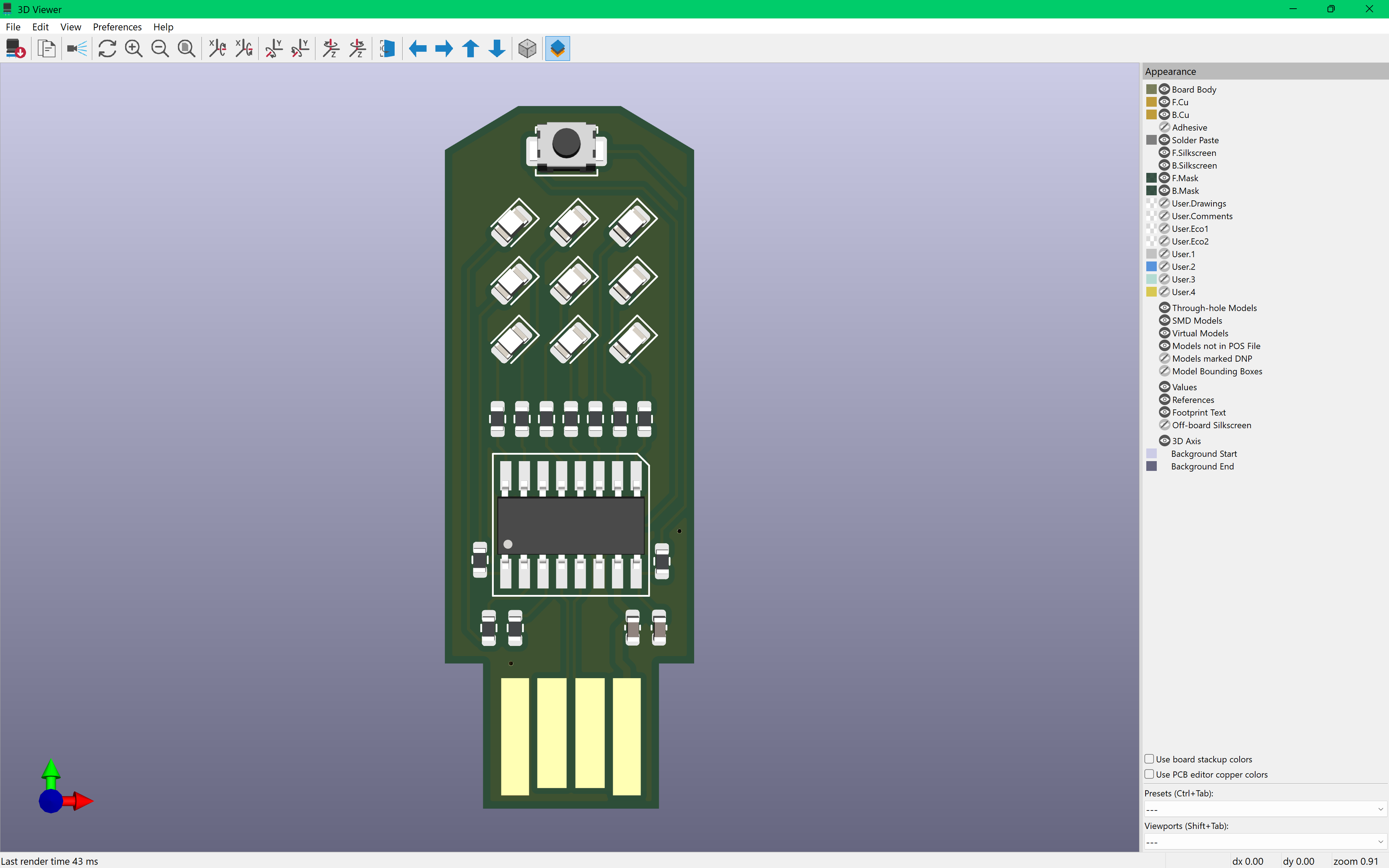
Although... the board is looking a little bare. Let's give it a case!
Adding a Case
Earlier, if you chose not to increase your PCB thickness to 2.0mm (which is the right decision, it's way overpriced) you'll be needing a case.
At the bare minimum it needs to be beneath the USB footprint section of the PCB to increase the overall thickness. We'll be adding a thin layer under the entire PCB for simplicity.
This guide uses Fusion 360 for 3D modelling. Feel free to use other software you're familiar with, just note that it may be harder to follow along.
To begin, create a new project, we'll be making a Part Design. Here's what it looks like:
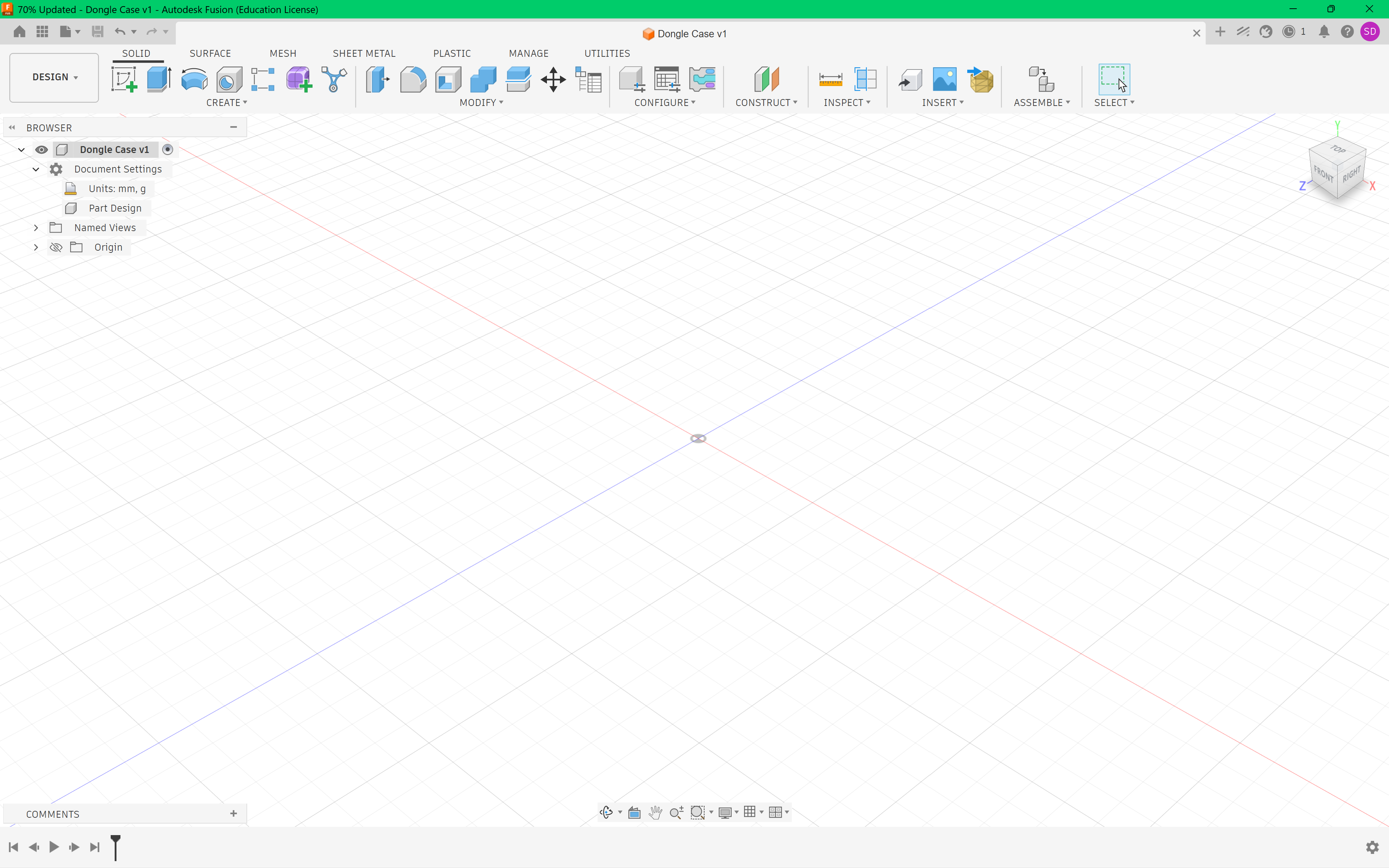
Make a new sketch. The plane you click is the one the sketch will be placed on.
In KiCAD's PCB editor we'll export our board outline File --> Plot with the following settings:
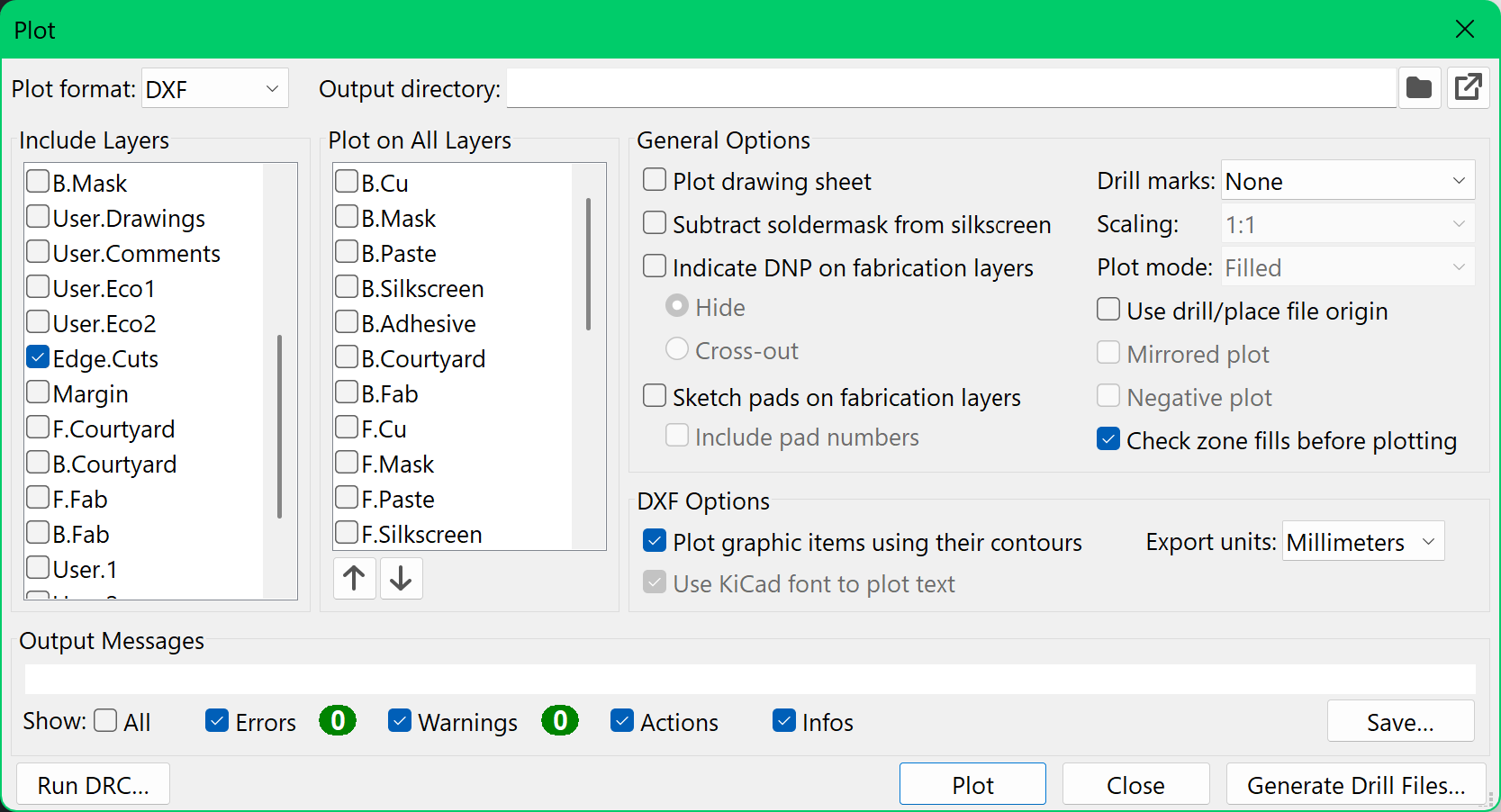
We are exporting the Edge.Cuts layer in millimeters. Press "Plot" to export the DXF.
In Fusion 360, under Insert select Insert DXF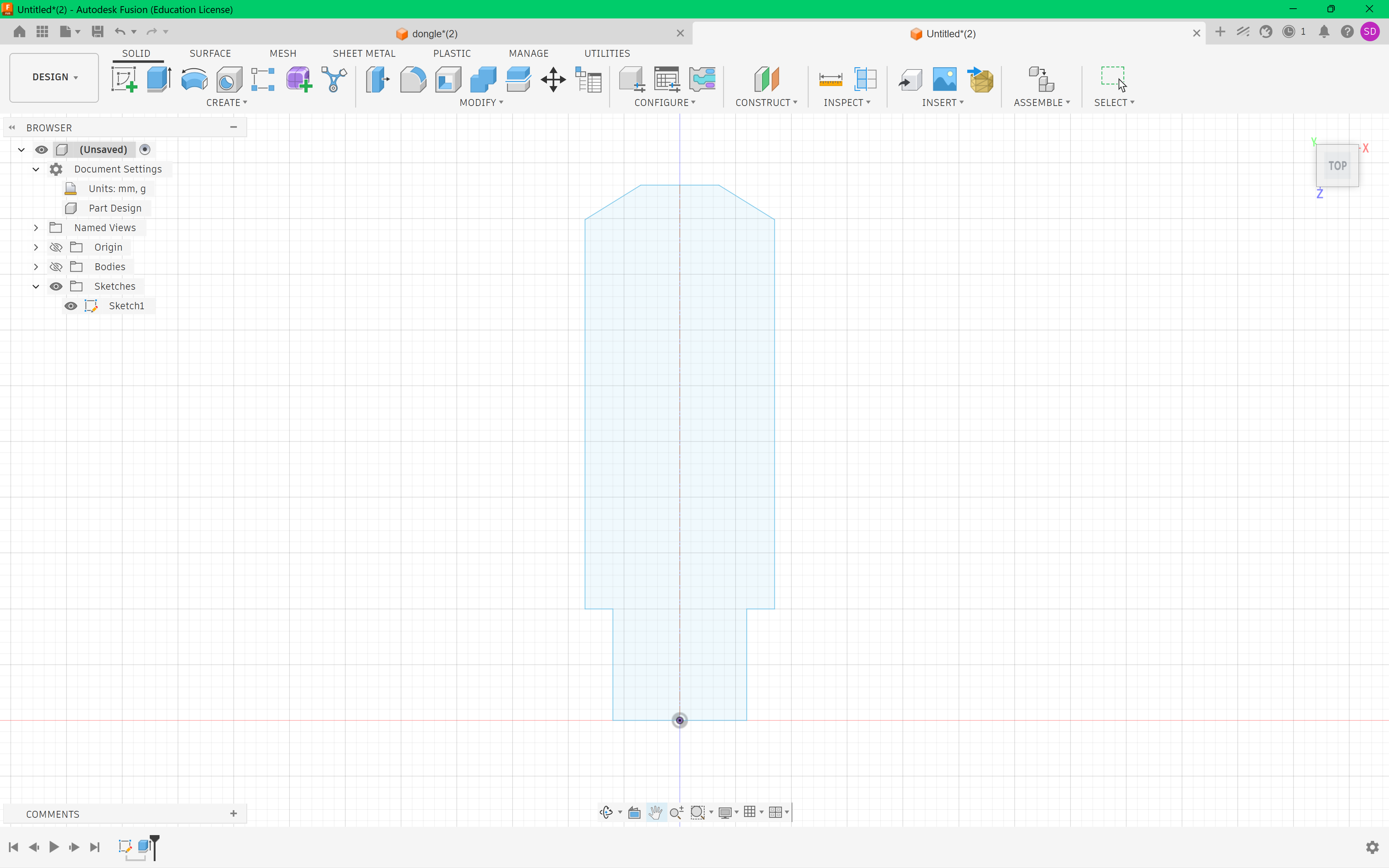
Press "e" to begin extruding and select your sketch. Here I've given the model a height of 0.4mm as my board is 1.6mm in total thickness. This may vary depending on your board thickness.
This model is the bare minimum! It's just enough so that the board fits snugly, and needs adhesive to be attached.
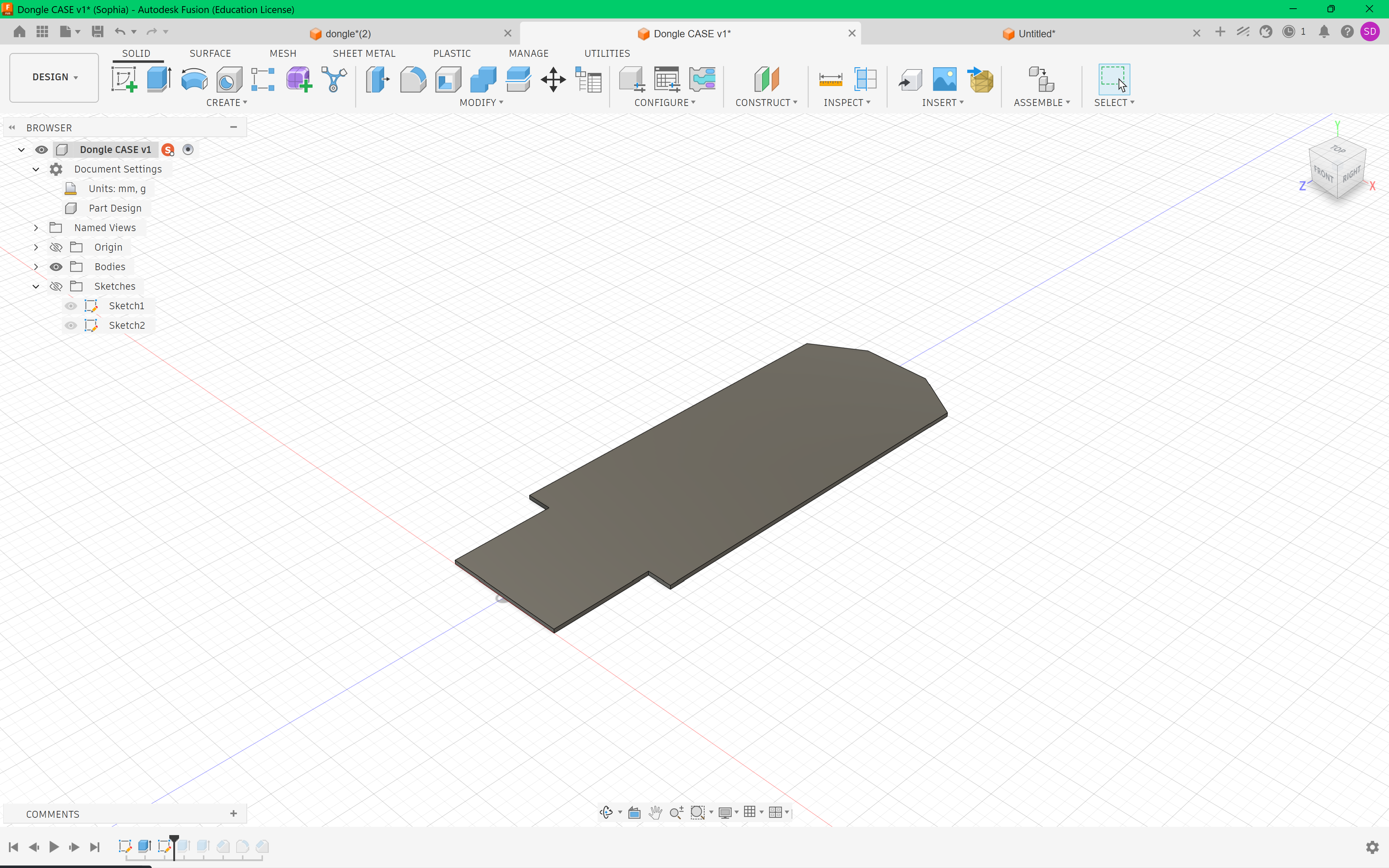
File --> Export --> Choose STEP Files (*.step) --> Export, repeat this for .f3d and add these to your repository!
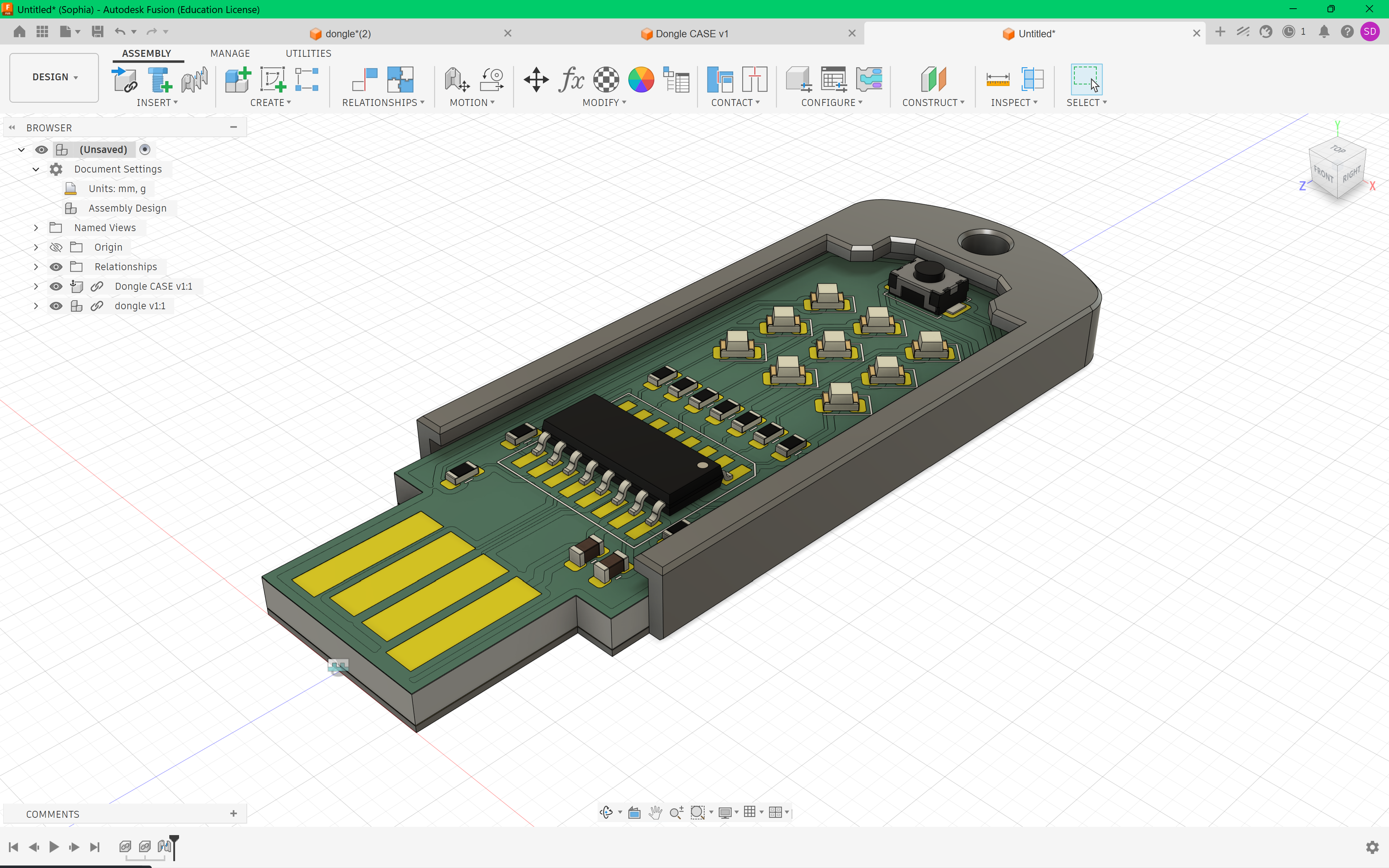
You can make something much cooler than the above, here's what I ended up with: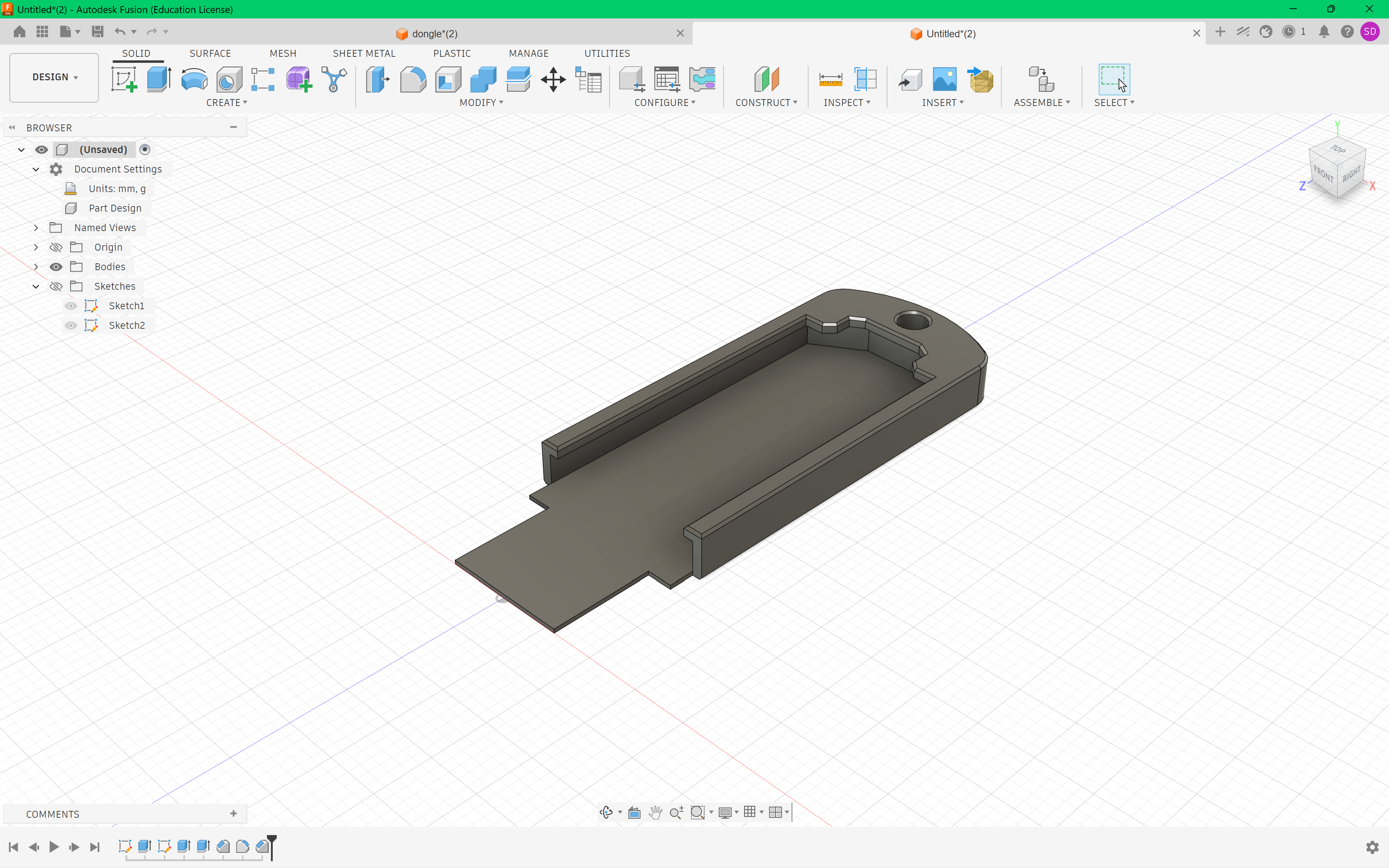
The Finished CAD
The last thing we need to do in terms of hardware is create a final assembly! This means a CAD file that contains all the components of your project, electronics included.
Let's start off by importing our PCB into Fusion 360! In KiCAD's PCB Editor go to File --> Export --> STEP. Then in Fusion 360, in a new Part Design under File --> Upload your STEP file.
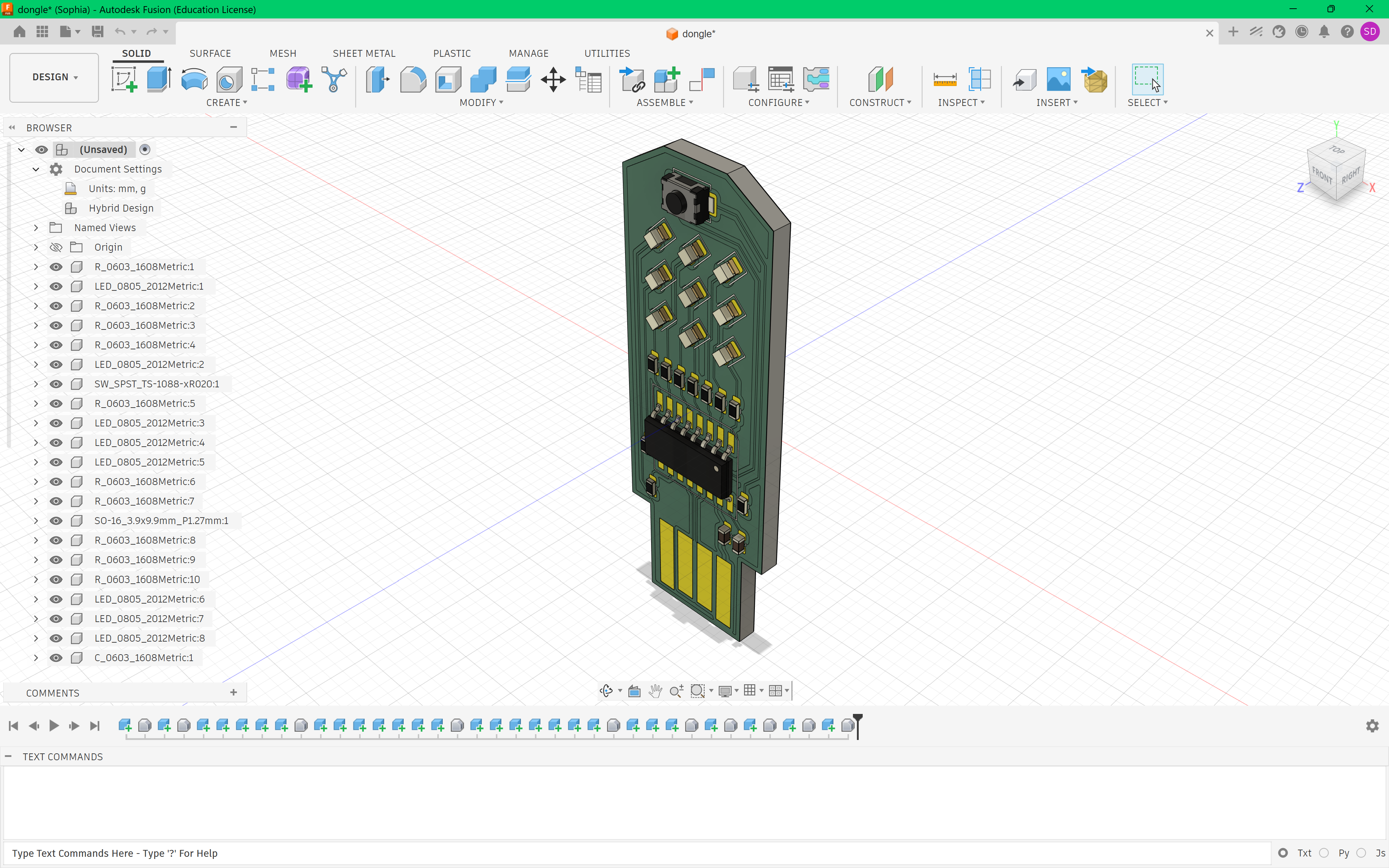
Looks good; However, as you can see from the left hand bar, there are tons of unpositioned individual components. Meaning when you move the PCB, the components won't move with it.
To solve this, we are going to make all the components' positions rigid relative to each other.
Select everything --> Assemble --> Rigid Group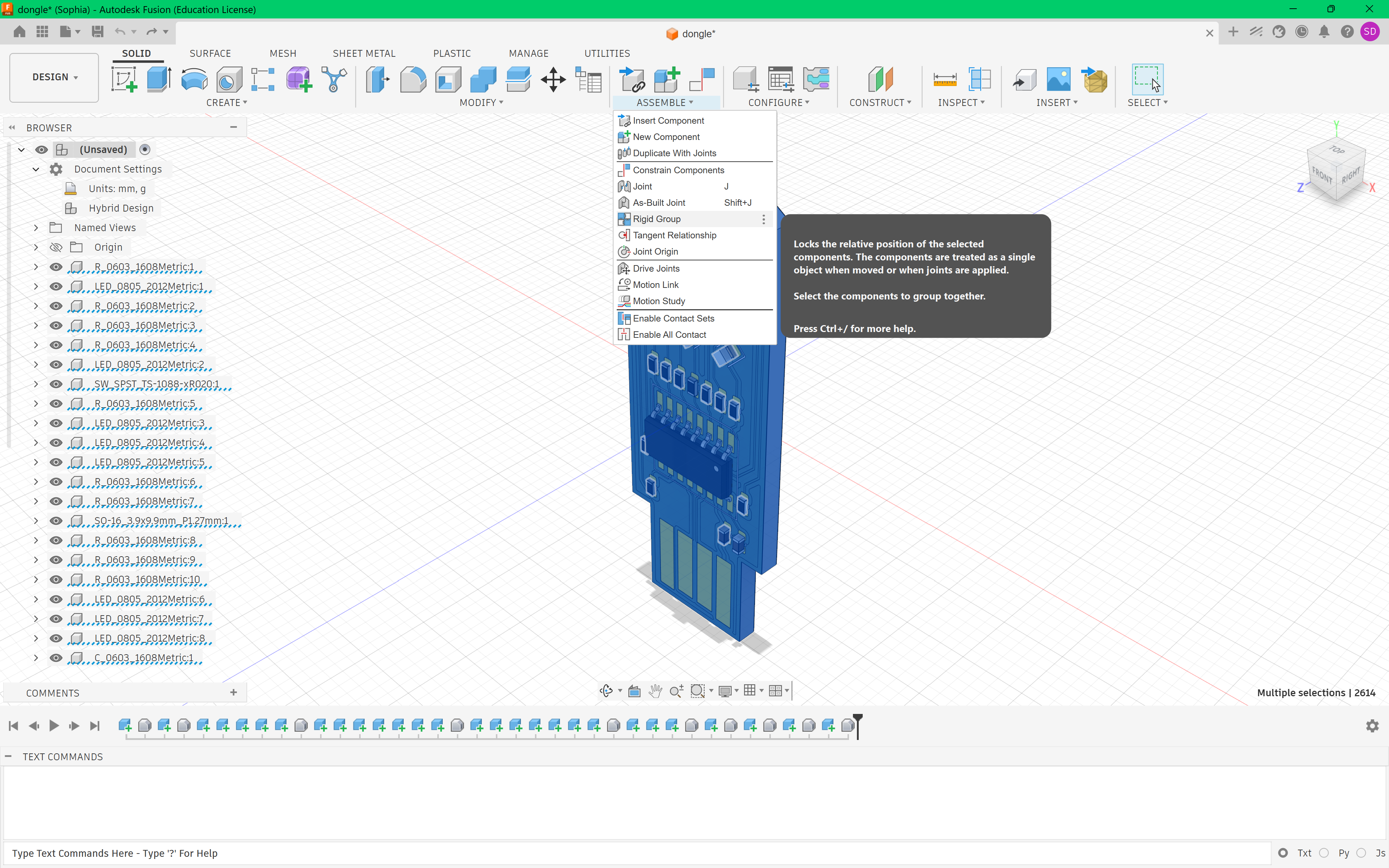
Now let's assemble our project, we'll do so by creating a New Project and selecting Assembly Design (instead of Part Design like we did previously)
Open up the data panel and insert each model into the design.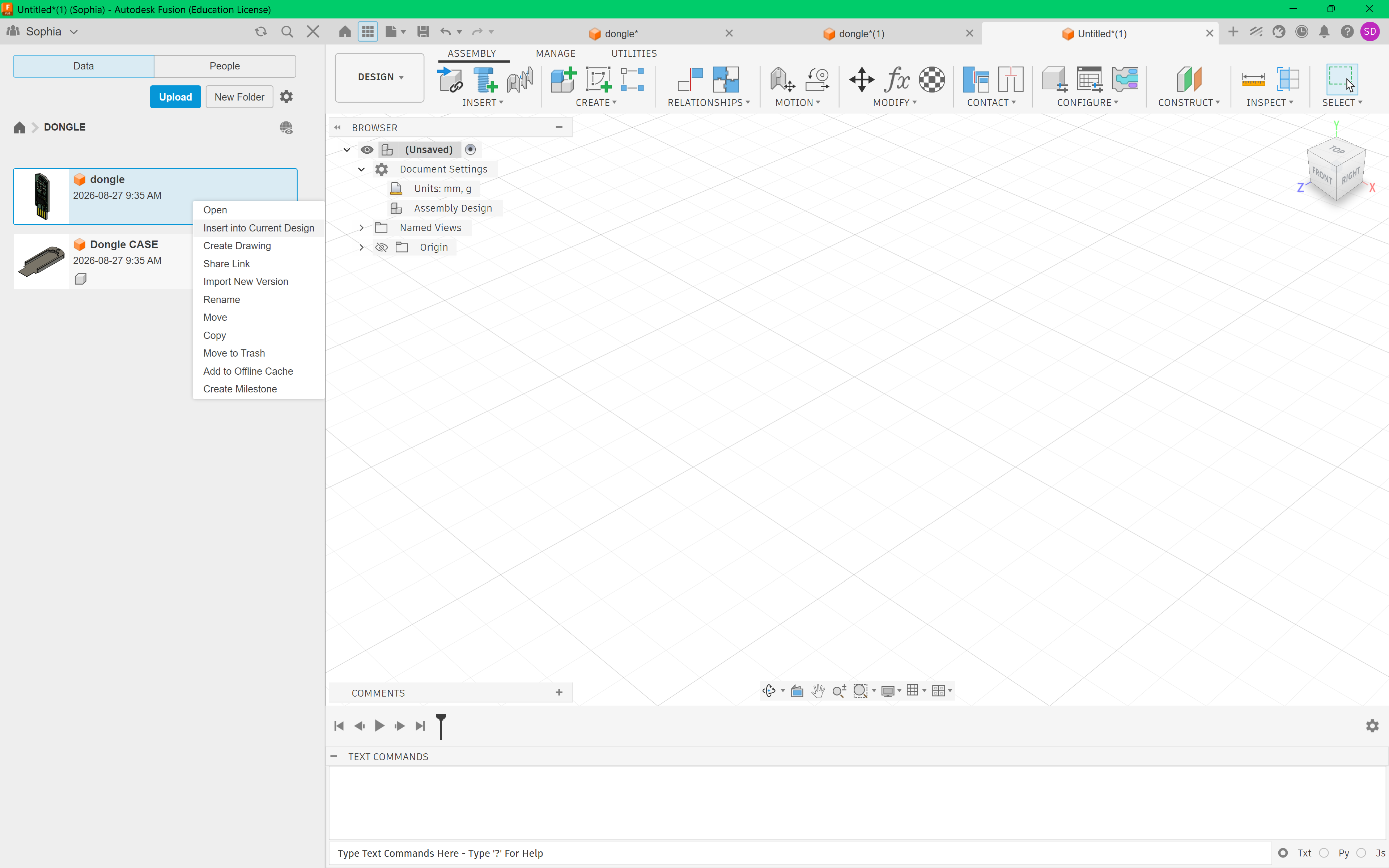
I had to rotate my PCB first by pressing "m" to enter "MOVE/COPY" mode. This board could have also been rotated while inserting it into the design. Otherwise the components would end up joined at a 90 degree angle.
Under relationships, choose Constrain Components. We'll be using the default constraint type, "Align".
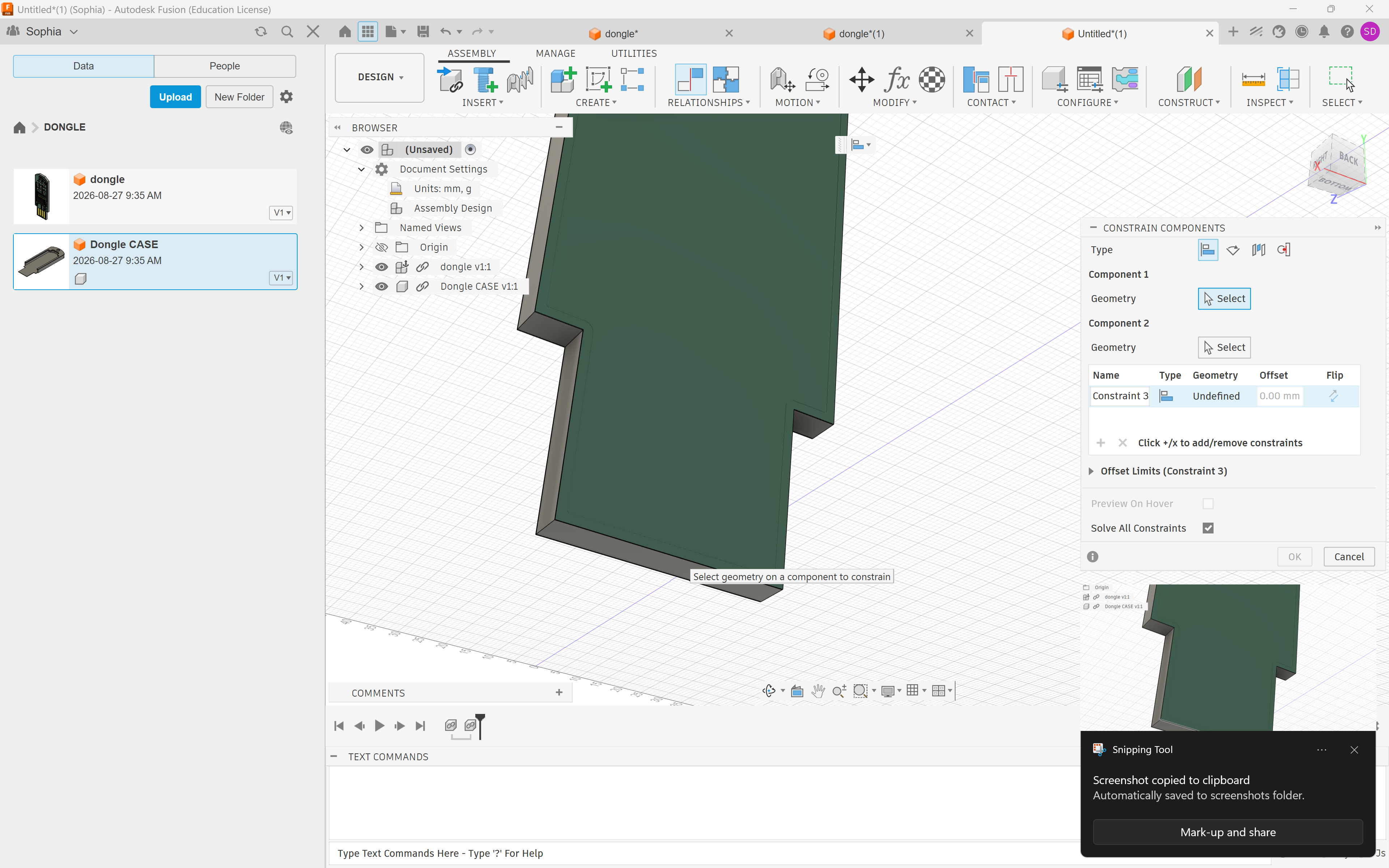
On each component, select a face/edge/point that sits flush with the corresponding face/edge point on the other component. This may take a few tries to get right!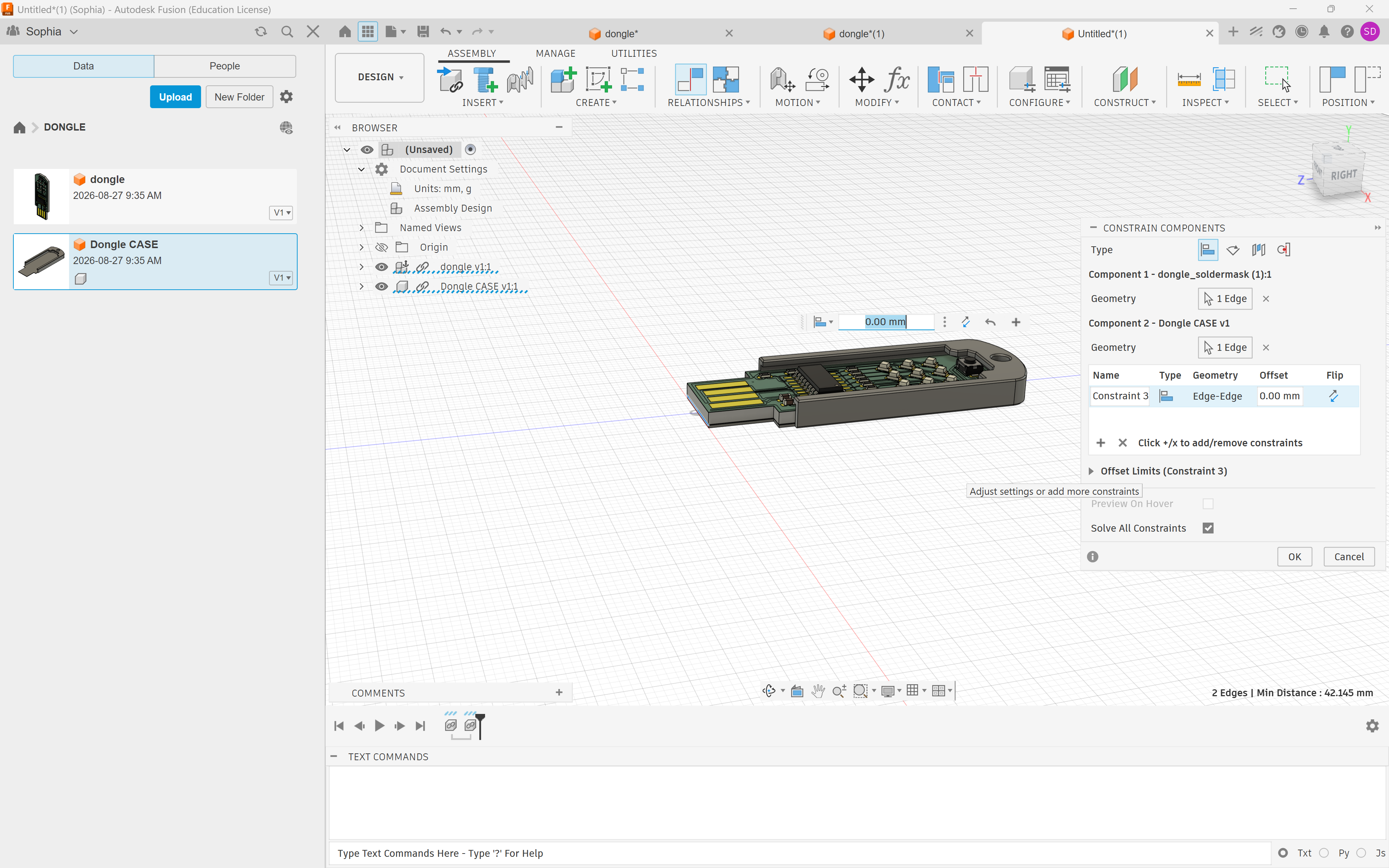
This is what it looks like with the PCB inside -- and now we're done with the hardware design!
Programming Your Board
We'll be using the CH55xduino as it is one of the simplest ways to program our MCU. It simplifies the complicated set up for our MCU and lets us flash the chip (upload the code) with one click.
If you want a seriously low level challenge, look into Keil C51 or SDCC, both methods to program the CH552G. CH55xduino is actually bundling SDCC under the hood.
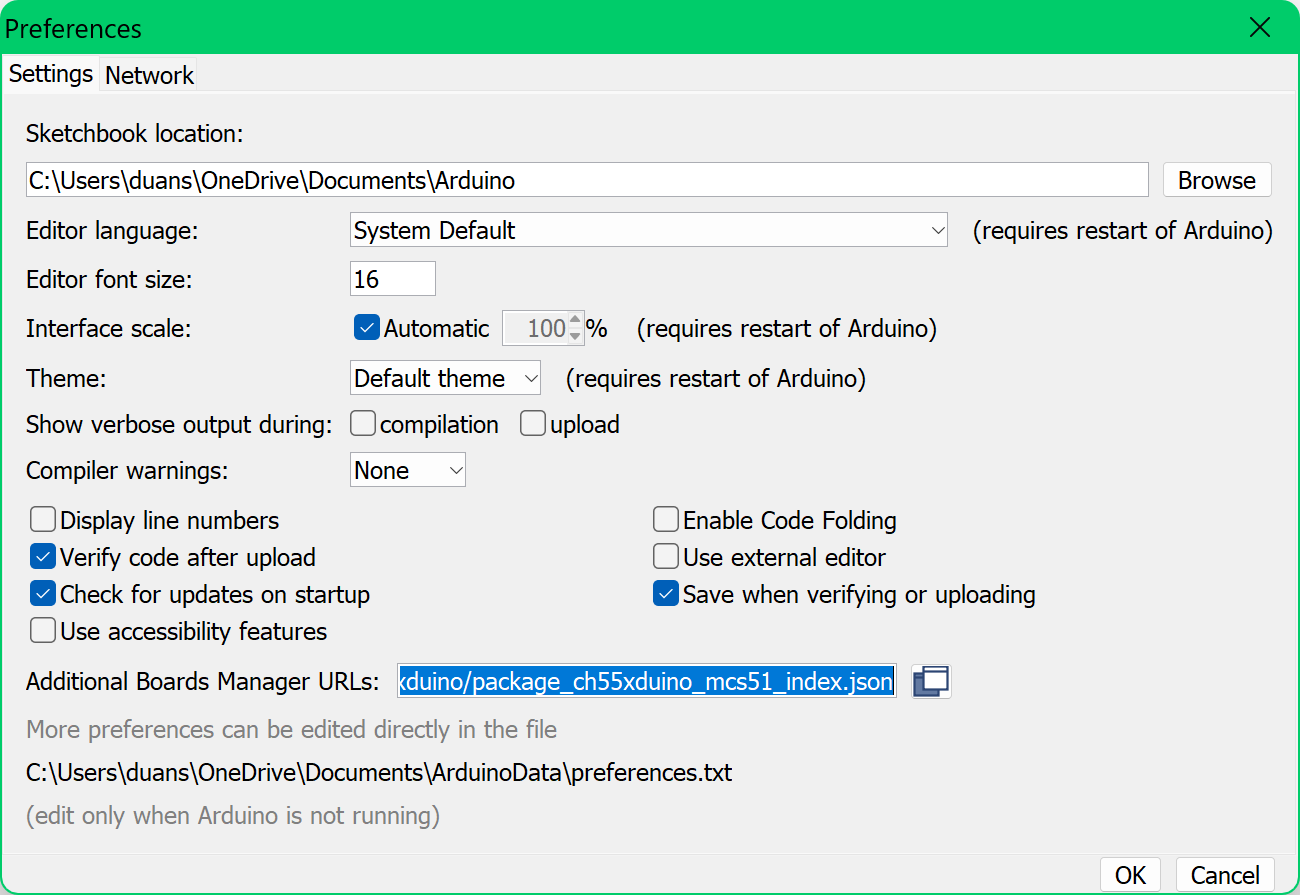
Install the Arduino IDE. In File --> Preferences --> Settings tab --> Additional Boards Manager URLs enter:
https://raw.githubusercontent.com/DeqingSun/ch55xduino/ch55xduino/package_ch55xduino_mcs51_index.json
This is to add the CH55xduino as a Board Manager (board managers allow your computer to communicate with a board that doesn't come preinstalled), as it isn't one of Arduino's defaults.
Go to Tools --> Board:"" --> Boards Manager --> Find CH55xduino by typing "ch" --> Click Install
Here we are installing the CH55xduino board manager.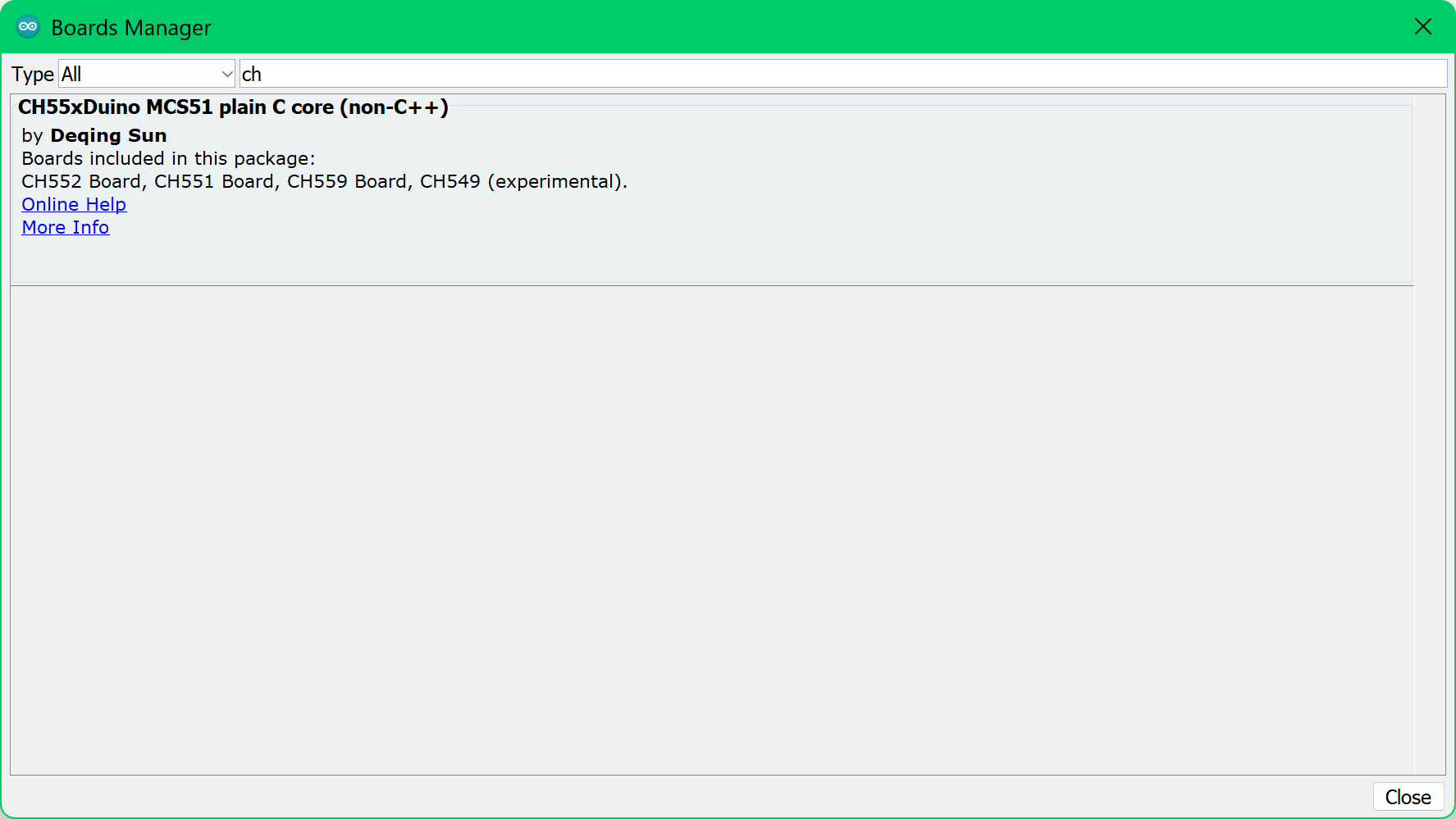
Now you should find a new entry CH55x Boards in the list at Tools --> Board --> CH55x Boards
Choose CH552 Board from the list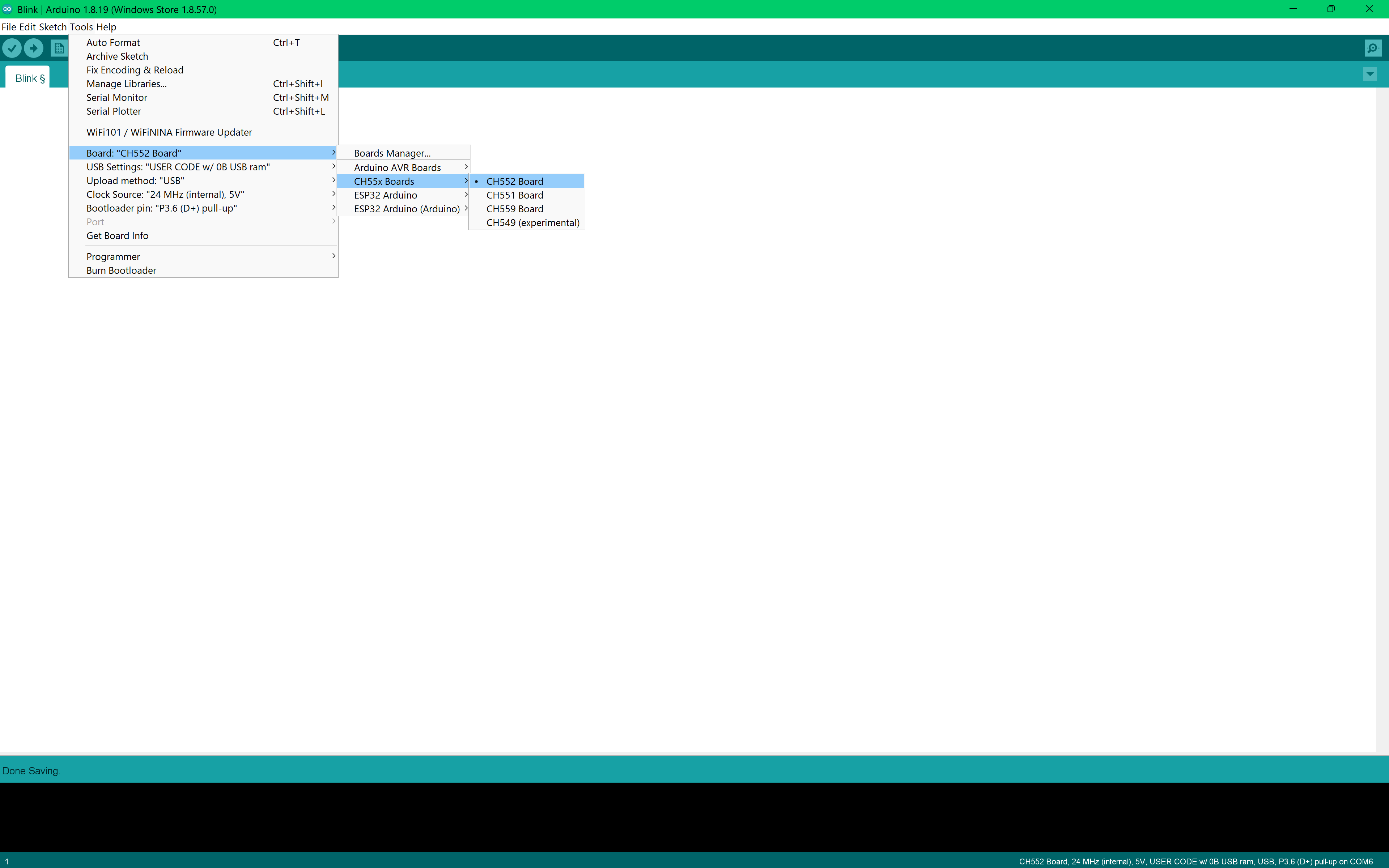
Open the standard Blink example from File -->Examples -->01. Basics -->Blink. This will give you some basic code to make an LED flash!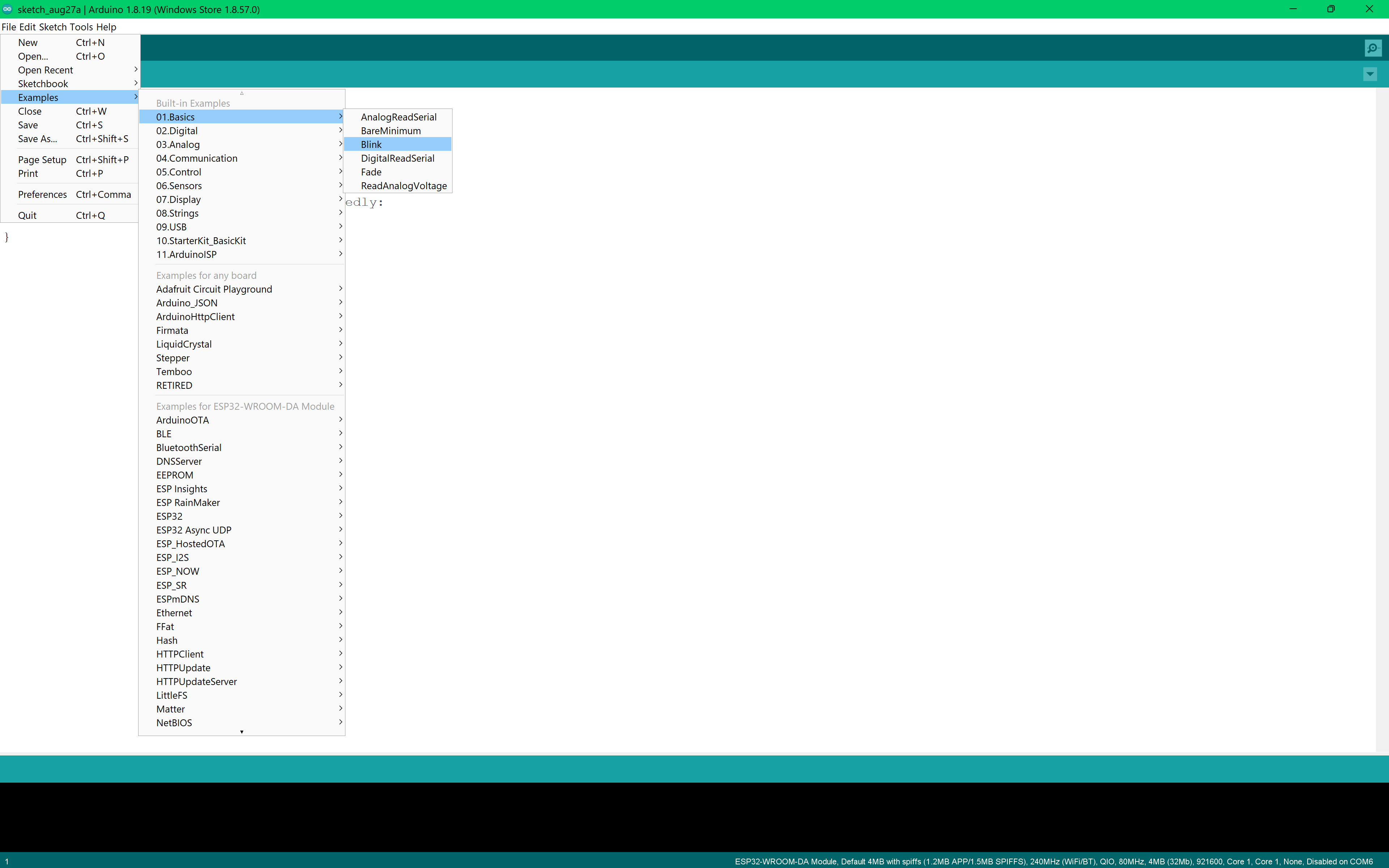
Change the pin number in Blink example. For example, if you have an LED you want to blink on P3.0, you will write pin 30. Here I'm using P1.1, pin 11.
#define LED_BUILTIN 11 // pin P1.1
// the setup function runs once when you press reset or power the board
void setup() {
// initialize digital pin LED_BUILTIN as an output.
pinMode(LED_BUILTIN, OUTPUT);
}
// the loop function runs over and over again forever
void loop() {
digitalWrite(LED_BUILTIN, HIGH); // turn the LED on (HIGH is the voltage level)
delay(1000); // wait for a second
digitalWrite(LED_BUILTIN, LOW); // turn the LED off by making the voltage LOW
delay(1000); // wait for a second
}
Once you receive your board:
- Compile it by hitting Verify
- Hold the button down, then plug in the USB cable while still holding it. Release the button once it's plugged in. This puts the board in bootloader (a.k.a. programming) mode.
- The CH552 uses the same USB connection for both running your program and uploading new code. Thus, if your code causes and odd bug, the chip and lose it's connection to your computer --> you'll crash the USB system. If this happens, fix the code and repeat the step above
This is the baseline firmware you need to submit your dongle! Modify it to work with your project. Keep in mind that the more you code ahead of time, the more polish you are adding!
If you're not sure how to continue programming your board, check out the following resources:
- CH55xduino
- CH55xduino examples - We used "Blink", but there are plenty more!
- Arduino Programming Language Docs
- Paul McWhorter's Arduino Lessons Playlist